

Guides How To Use PubCaseFinder
CaseSharing

This service is designed to allow users to manage case information on rare and genetic diseases on their local PCs and to share it smoothly with users around the world.
No registration required, start immediately
This service does not require user registration and can be used immediately.
Data is stored locally on your PC and not shared publicly
Case information managed with CaseSharing is stored as files on your local PC rather than in the cloud. No data is transmitted over the internet, ensuring a secure environment.
Promoting sharing and collaboration
Case information can be exported in the Phenopackets format, which is designed for international interoperability.
This enables seamless collaboration with researchers and healthcare professionals worldwide, as well as integration with clinical and research databases.
The system supports English, Japanese, and Korean, making global information sharing easier.
Mission
By using CaseSharing, we aim to support data management for healthcare professionals and promote smoother information sharing in the future. Our long-term mission is to make “Every case on Earth” related to rare and genetic diseases searchable.

Improving data management with CaseSharing
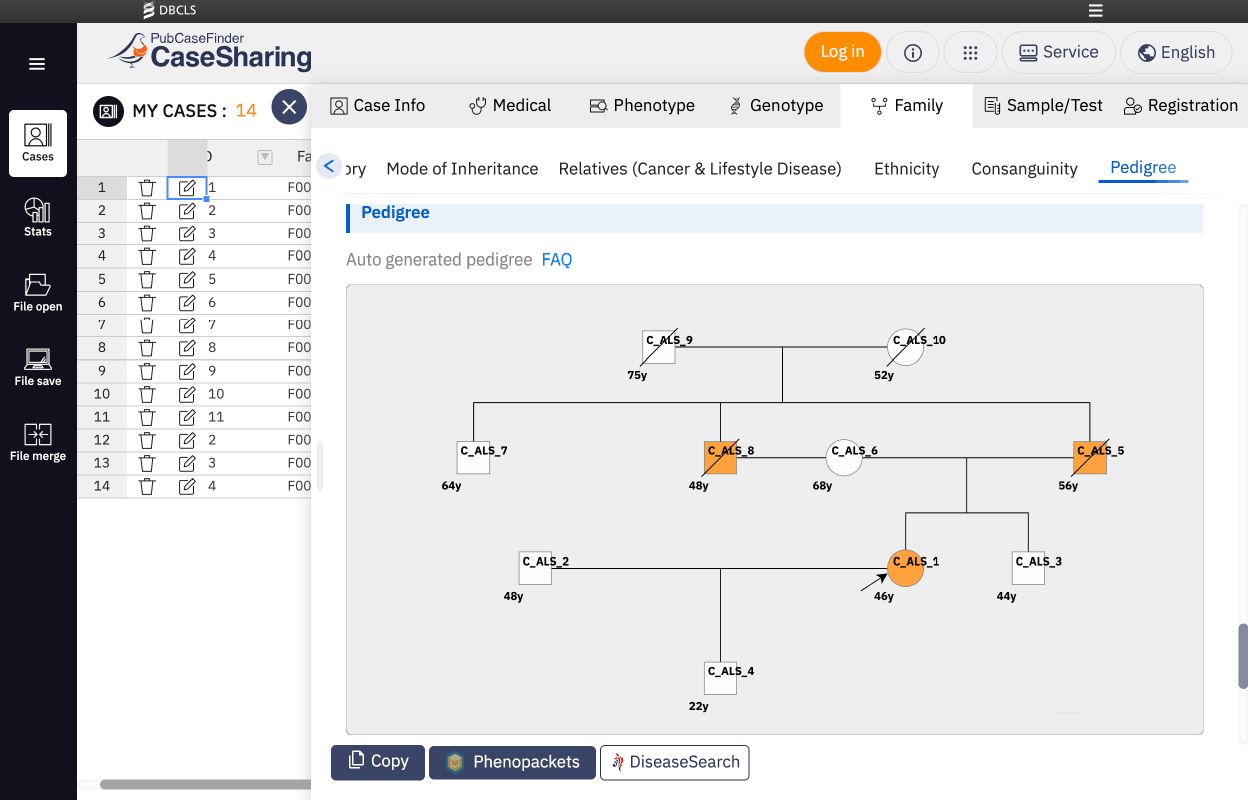
PickupAutomatically generate pedigrees
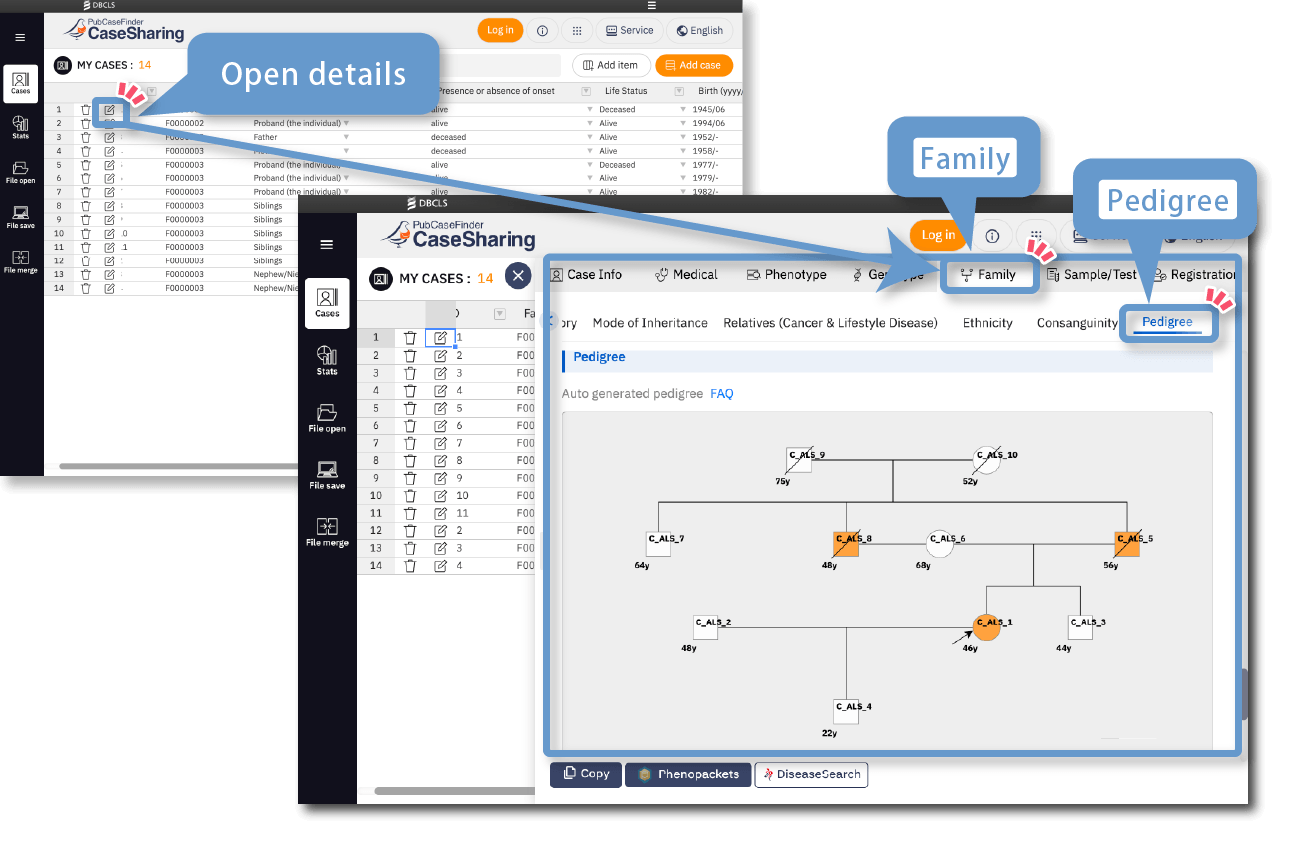
Pedigrees are automatically generated based on family IDs. Export is supported in JSON, SVG, and PNG formats.
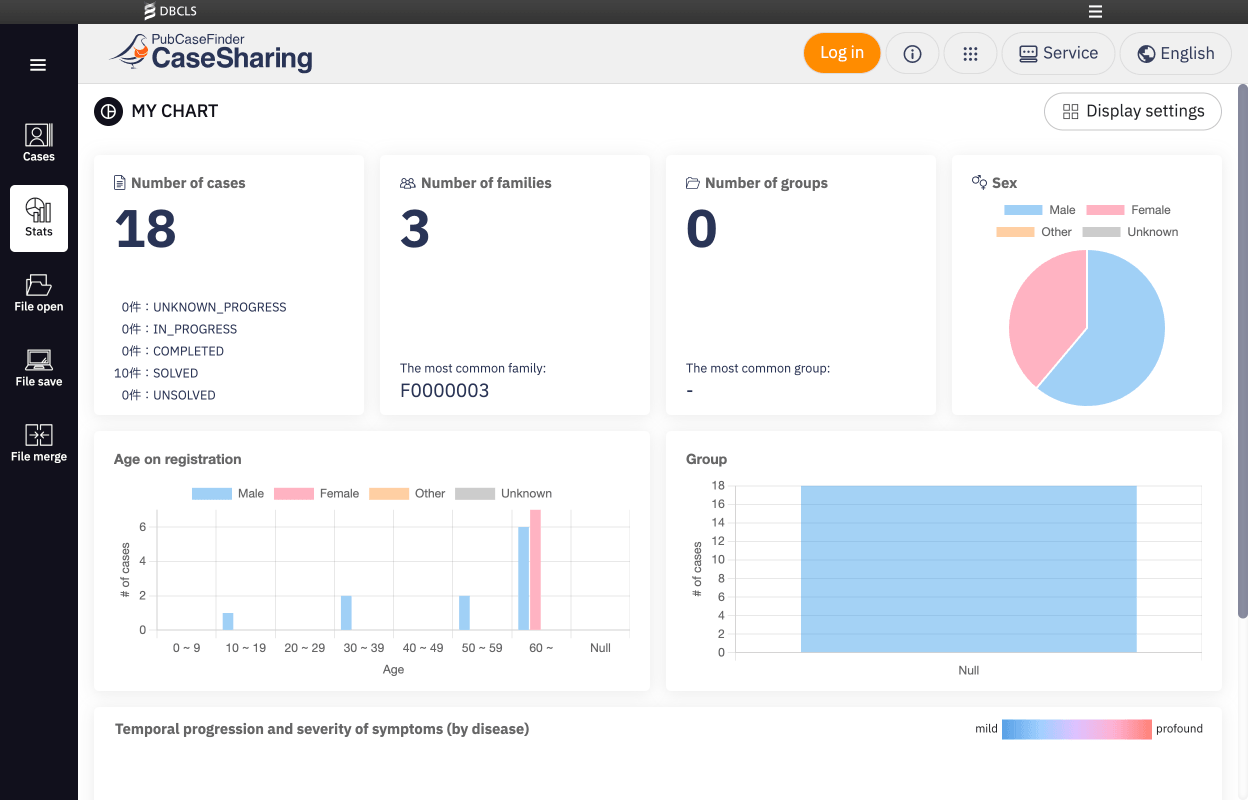
PickupGenerate statistical charts
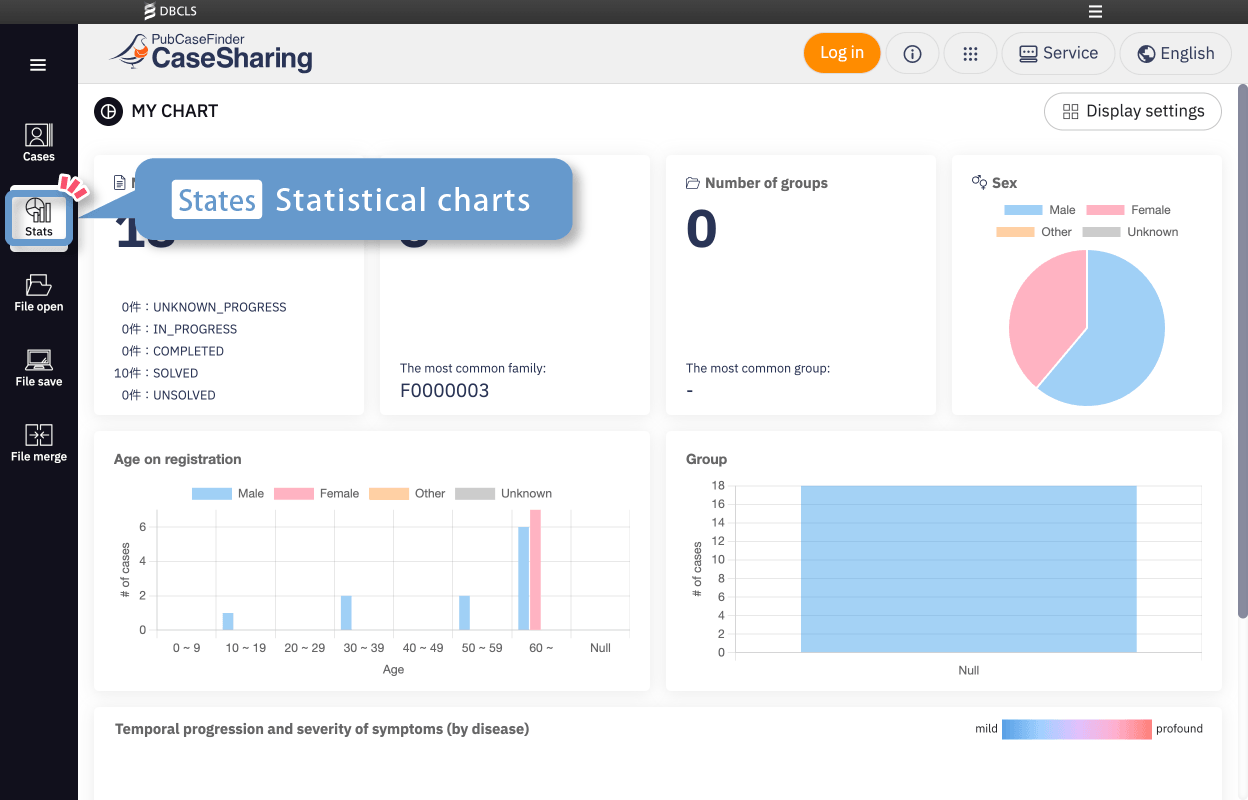
Statistical information for the entire dataset can be easily viewed at any time.
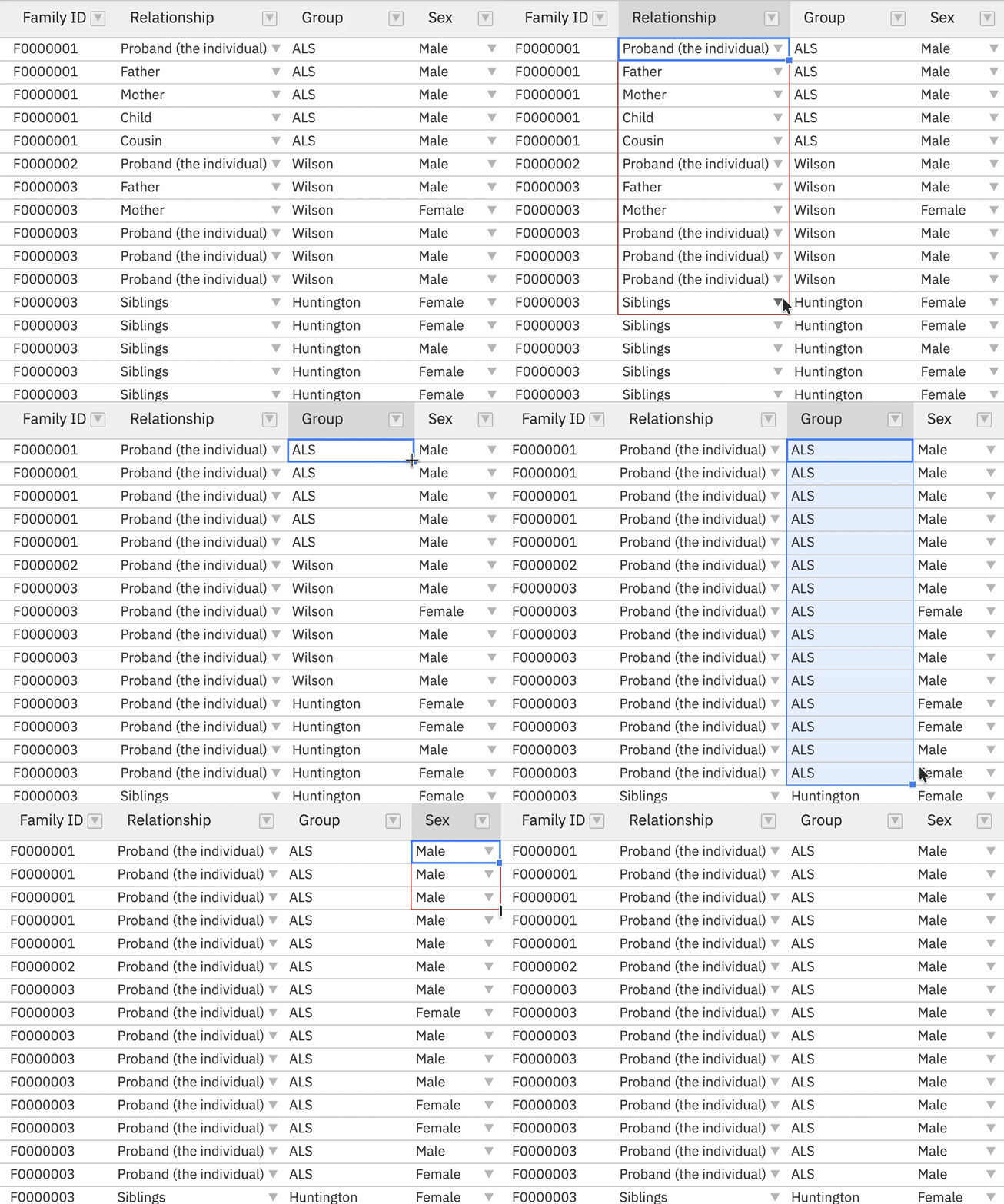
PickupBulk editing from the list view
Various edits, including bulk updates, can be performed directly from the list view.
User guide
Get started with sample data
Sample data can be downloaded here.
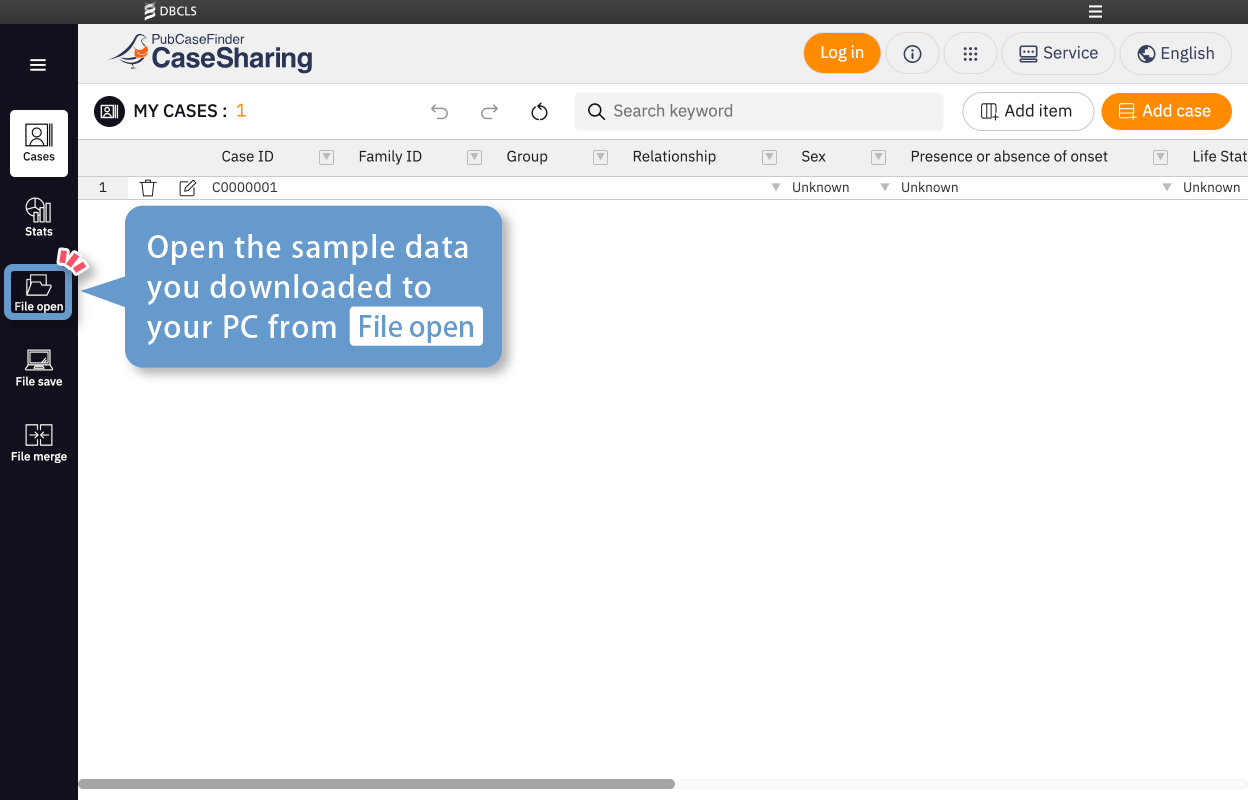
The file named casesharing_sample_(date-time).json is the sample dataset. You can download the sample data to your PC and load it from [File open] on the Cases screen.
Add, Delete or Duplicate cases
Add / Delete
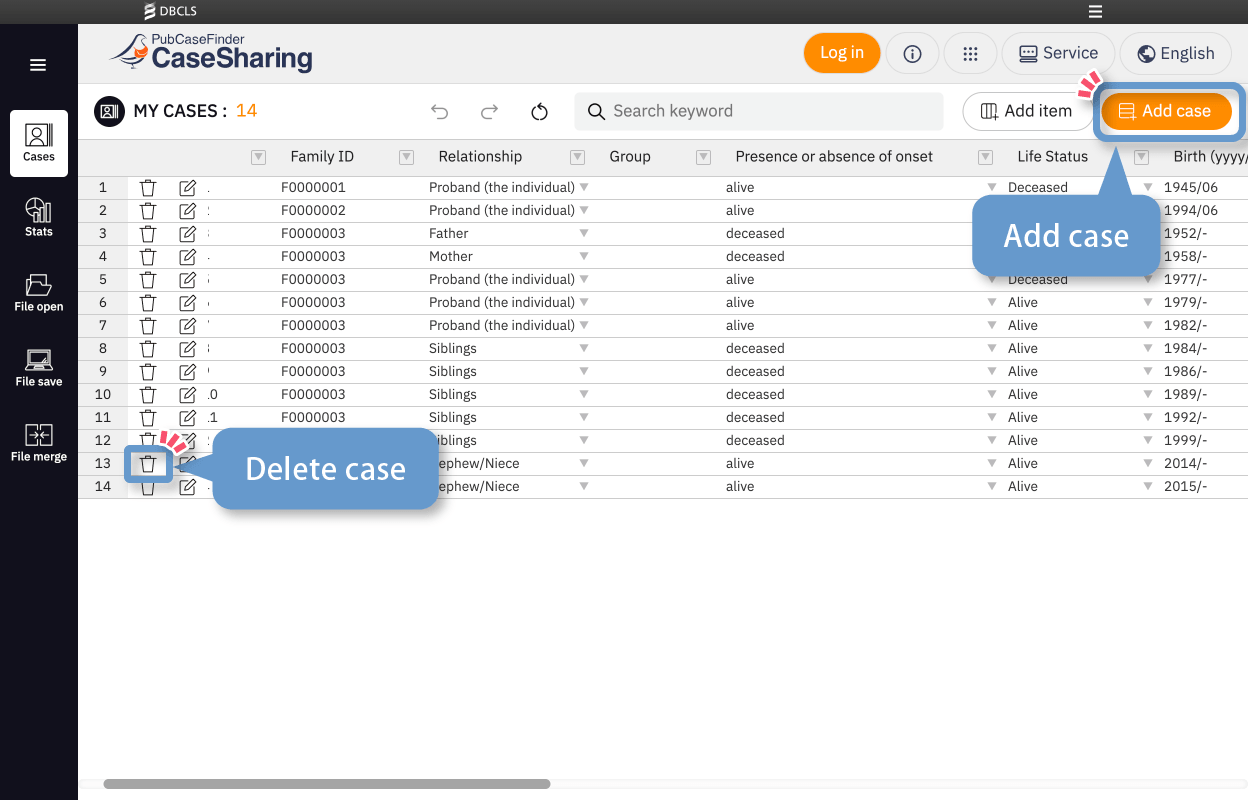
You can add or delete blank cases from the [Cases] screen (the list screen displayed first).
Duplicate
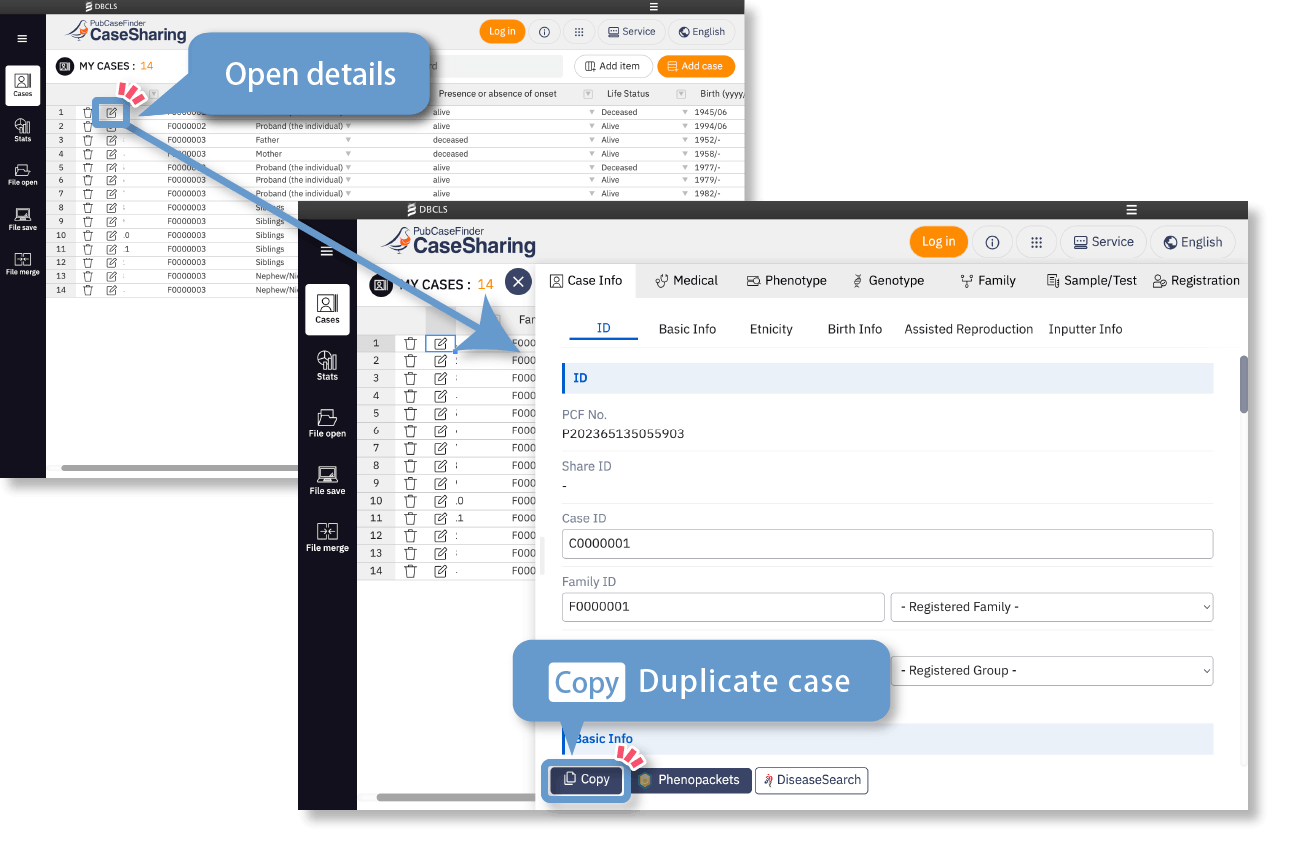
You can duplicate a case from [Copy] on the detail screen.
Record detailed information
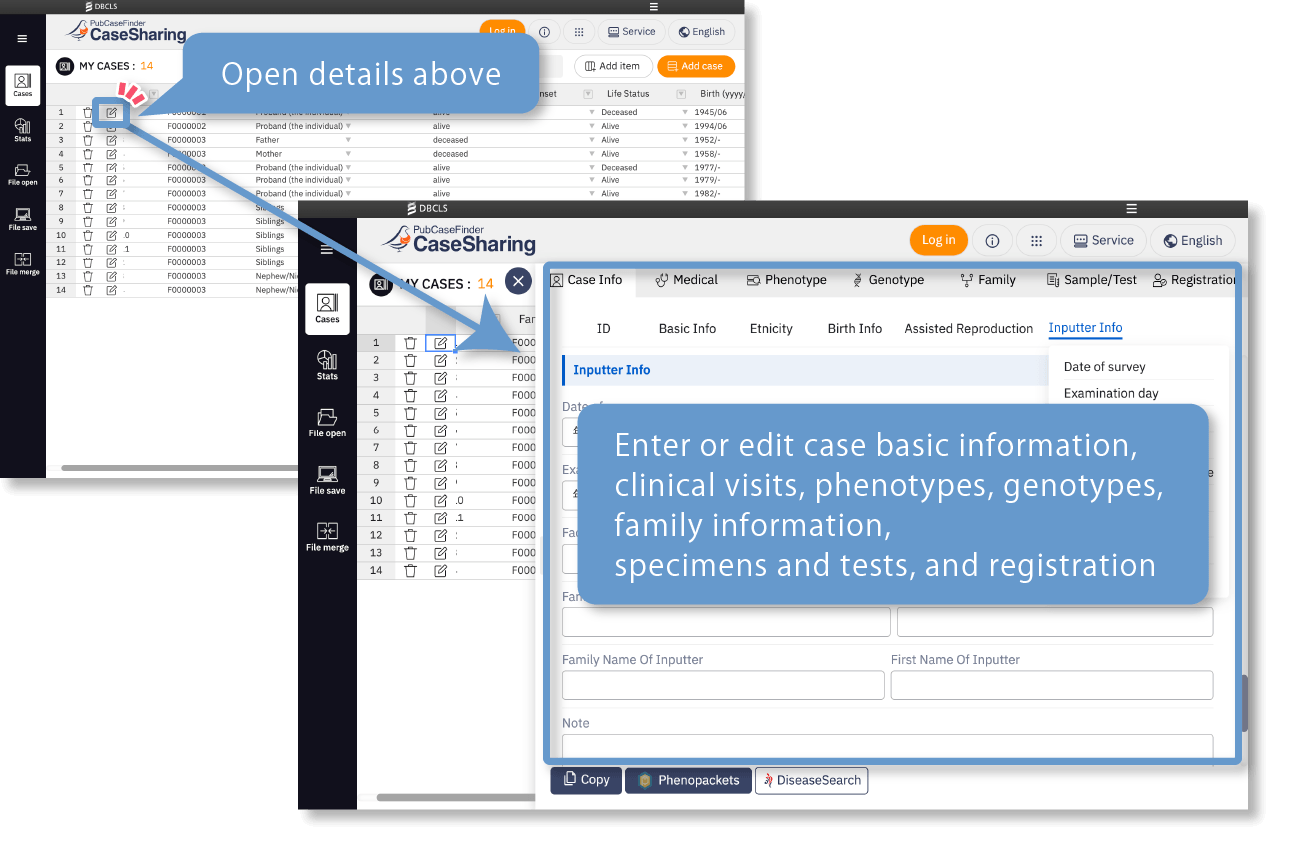
You can record detailed information for each item individually, including case basic information, clinical visits, phenotypes, genotypes, family information, specimens and tests, and registration details.
Edit the case list
The list view allows various edits and customization.
Direct input and editing are possible from the list columns.
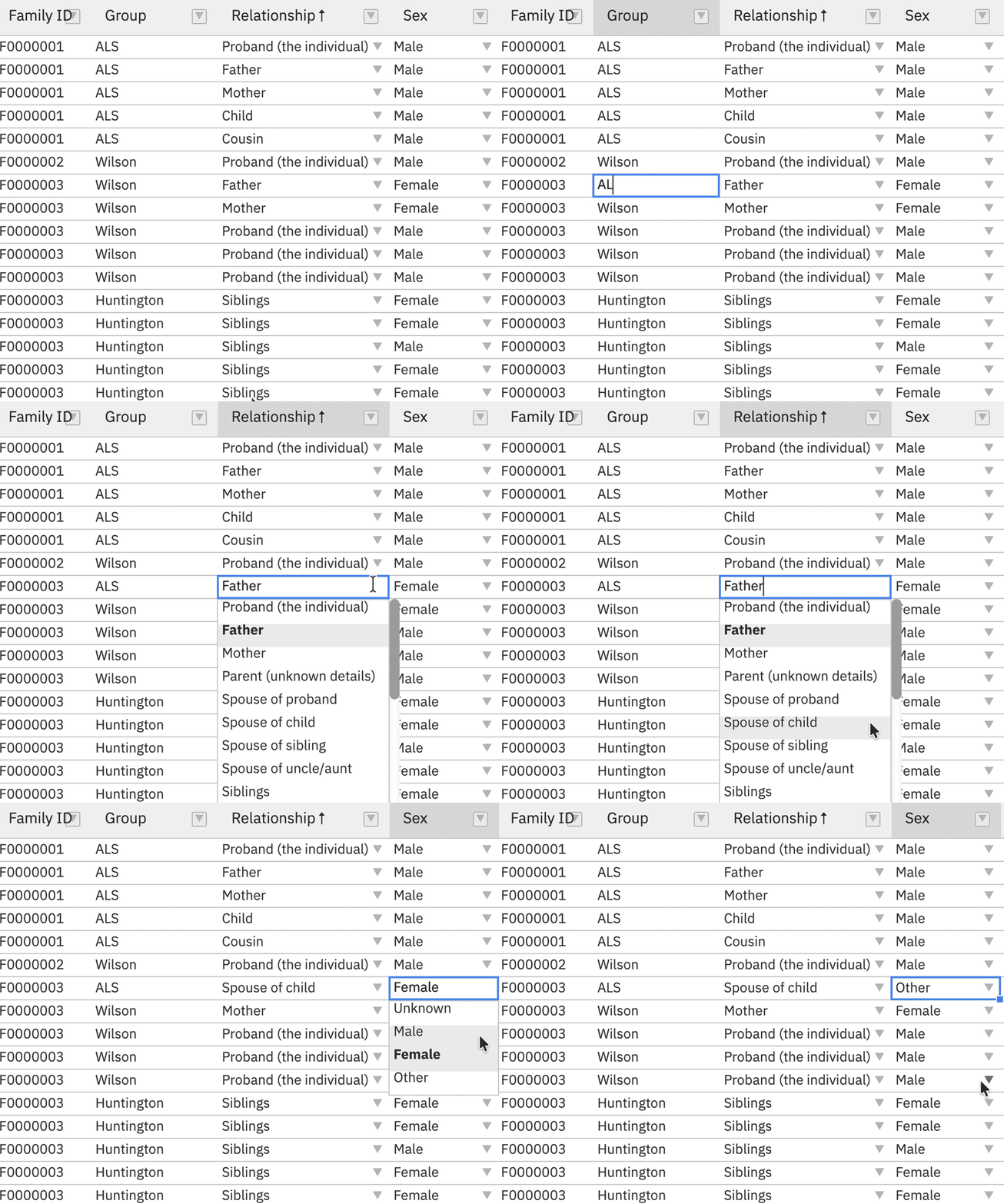
Change multiple columns at once
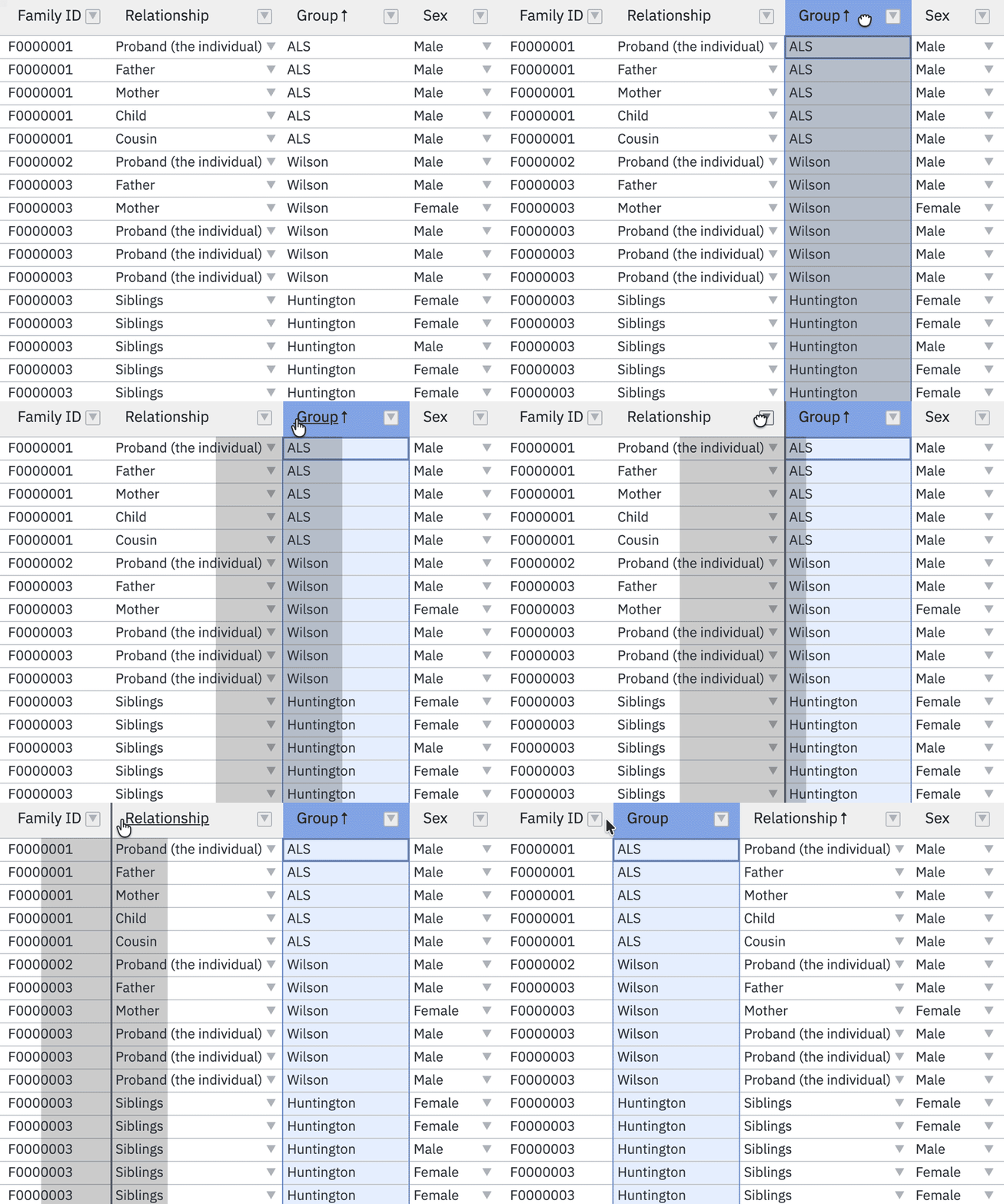
Reorder columns
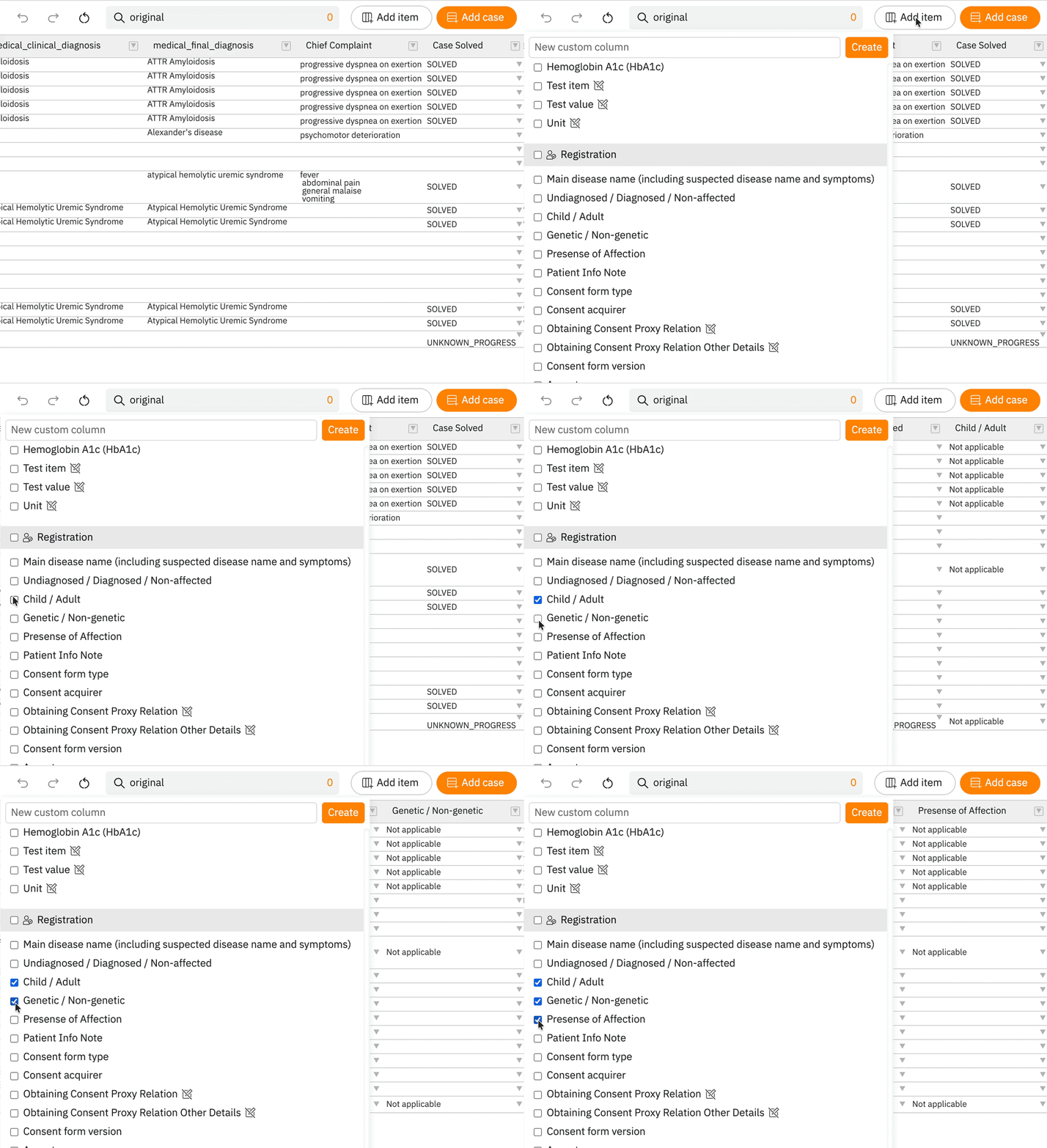
Change the visibility of columns displayed in the list
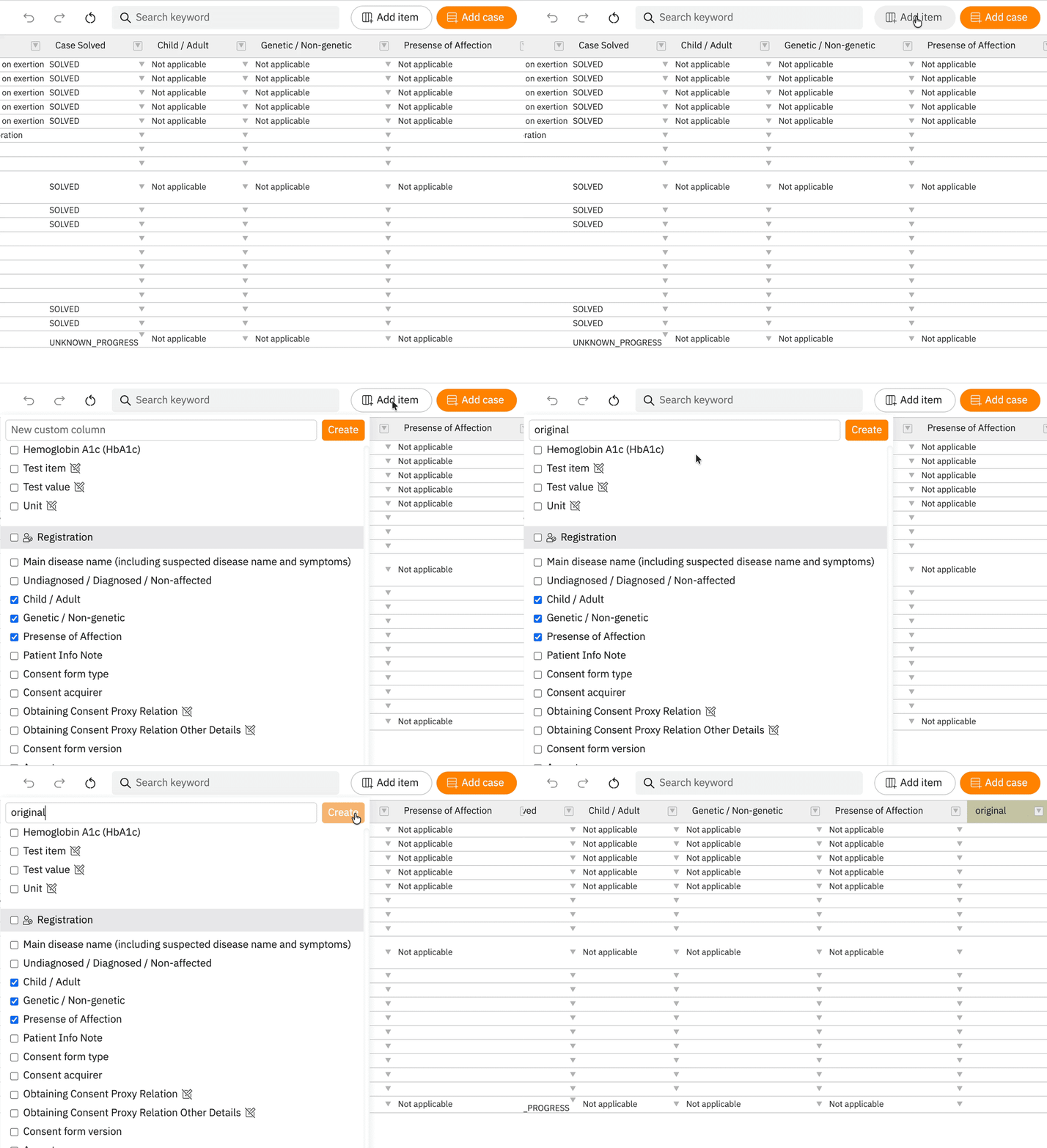
Create a new field
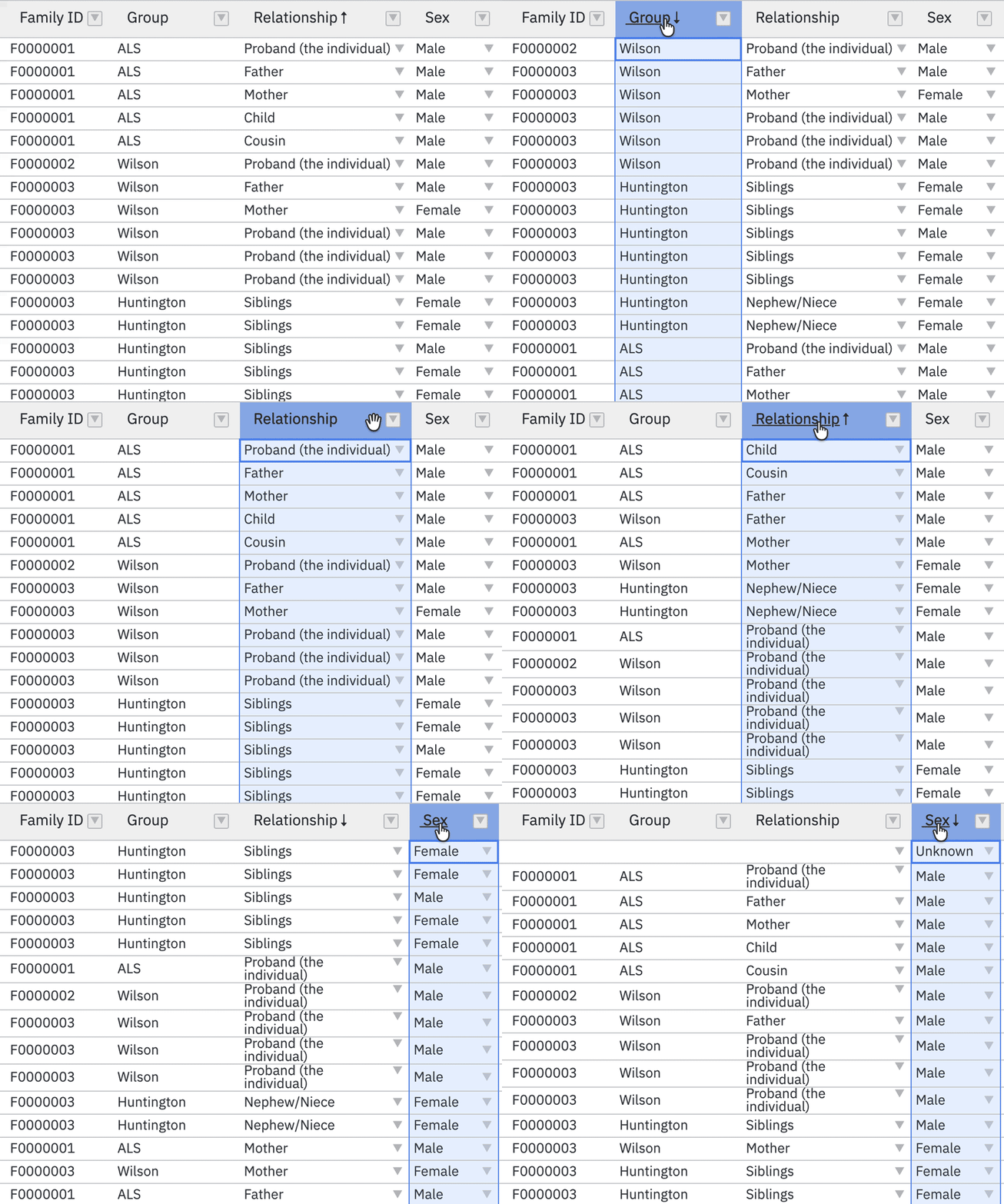
Sort rows
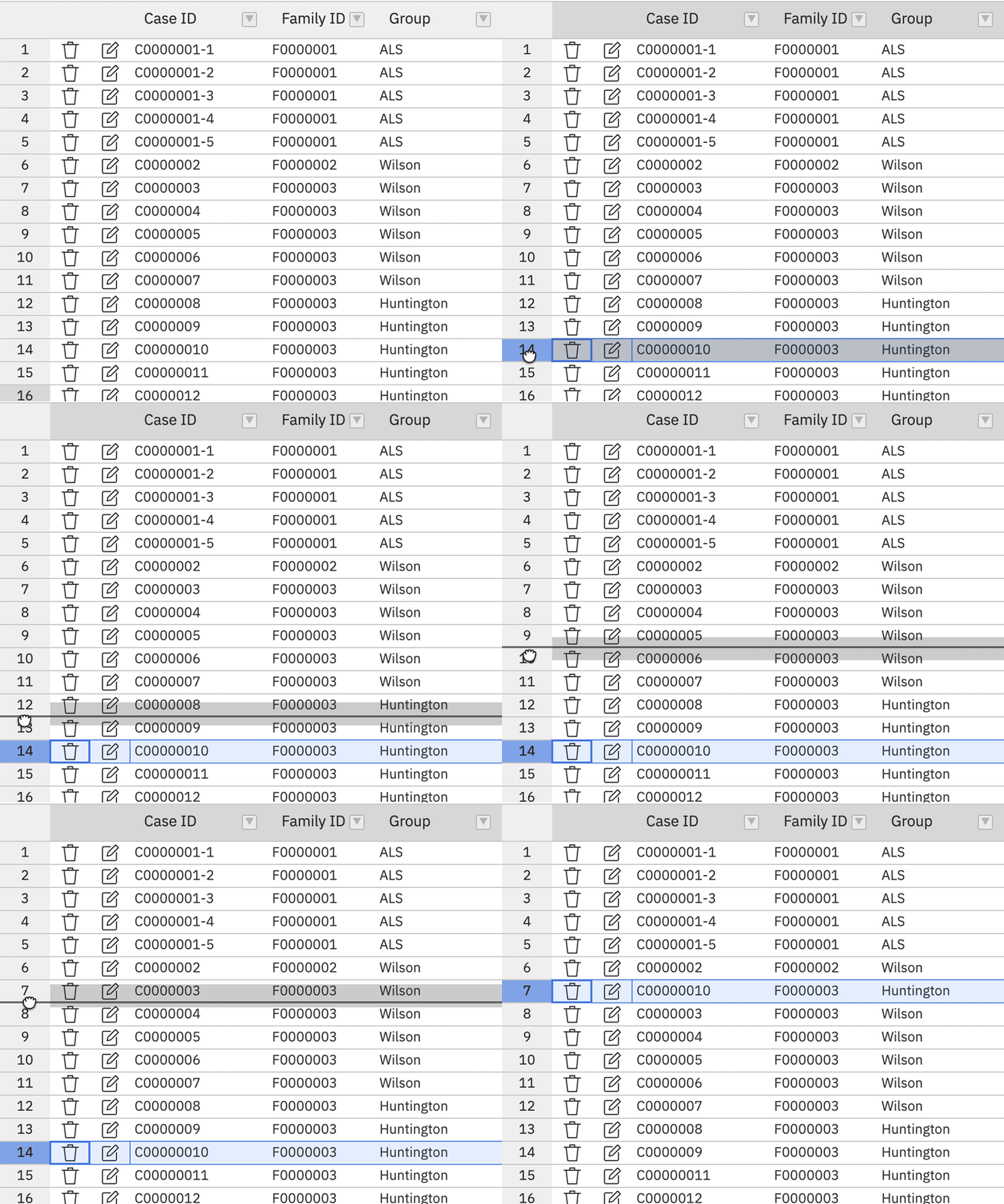
Reorder case rows
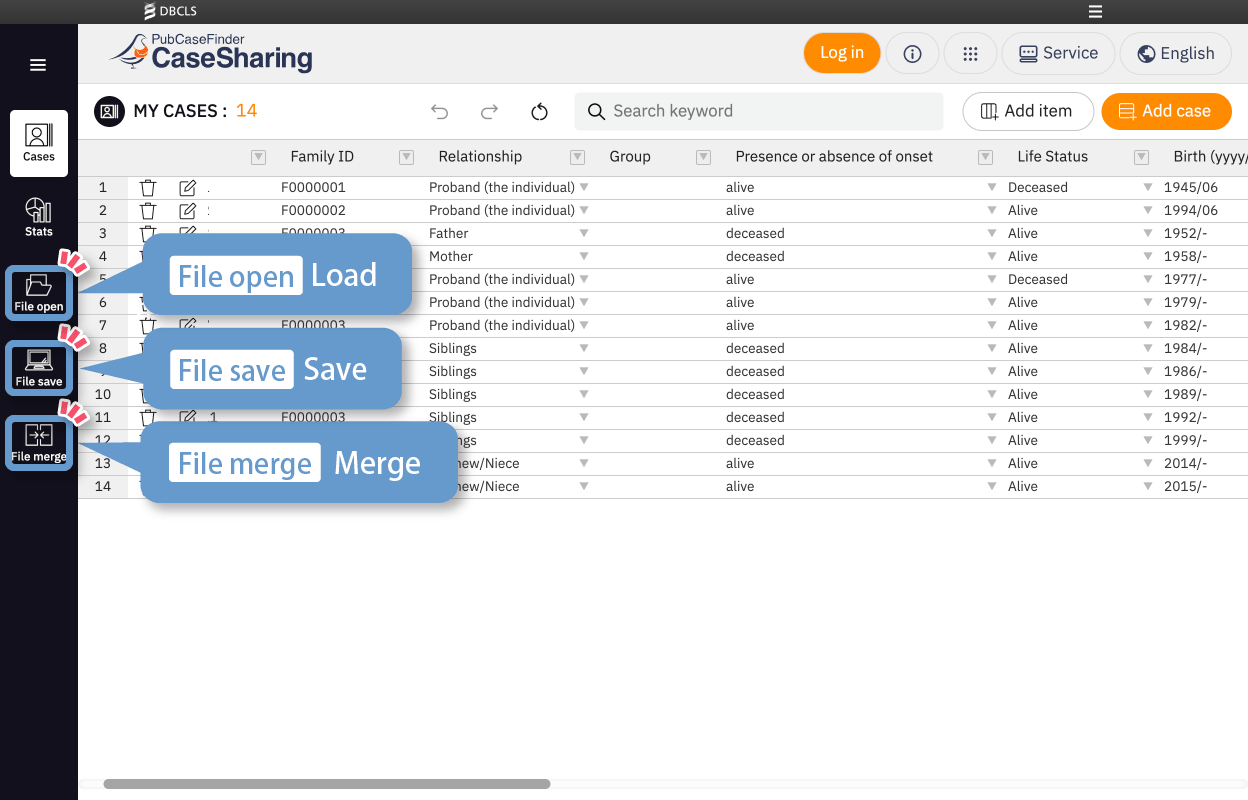
Save, Load, and Merge data
Save and load case data
Use [File save] to save the information.
A file named casesharing_(date).json will be downloaded to your PC.
When loading the data next time, open the casesharing_(date).json file from [File open].
Merge case data
You can merge multiple case data files.
With a file open, click [File merge] and add another case data file. The data will be merged by being appended below the currently opened information.
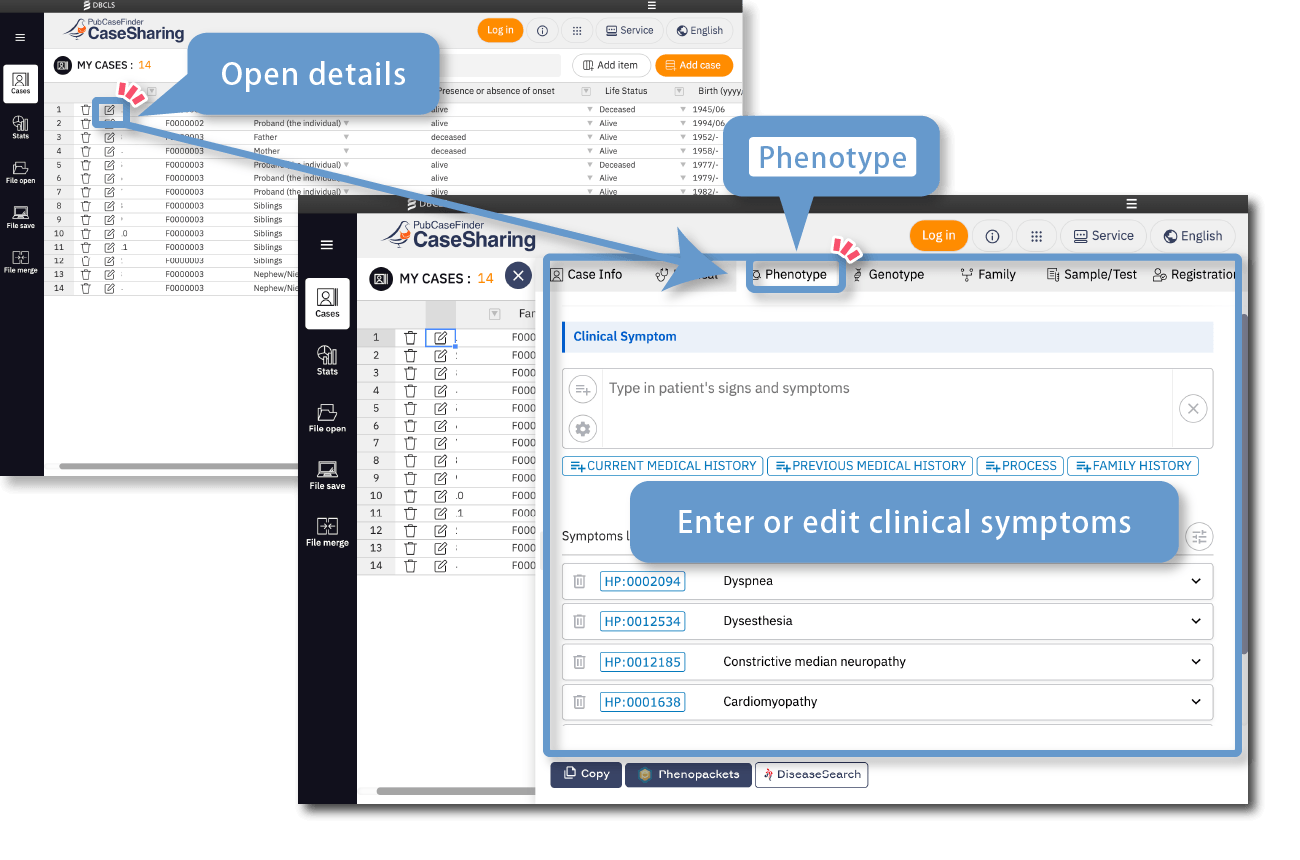
Register clinical symptoms
You can record detailed clinical symptoms in the [Details] > [Phenotype] section.
Generate pedigrees
A pedigree is automatically generated based on family relationships in the [Details] > [Family] > [Pedigree] section.
Generate statistical charts
You can view statistics of the registered case information from [Stats].