Guides How To Use PubCaseFinder
ZebraSeek

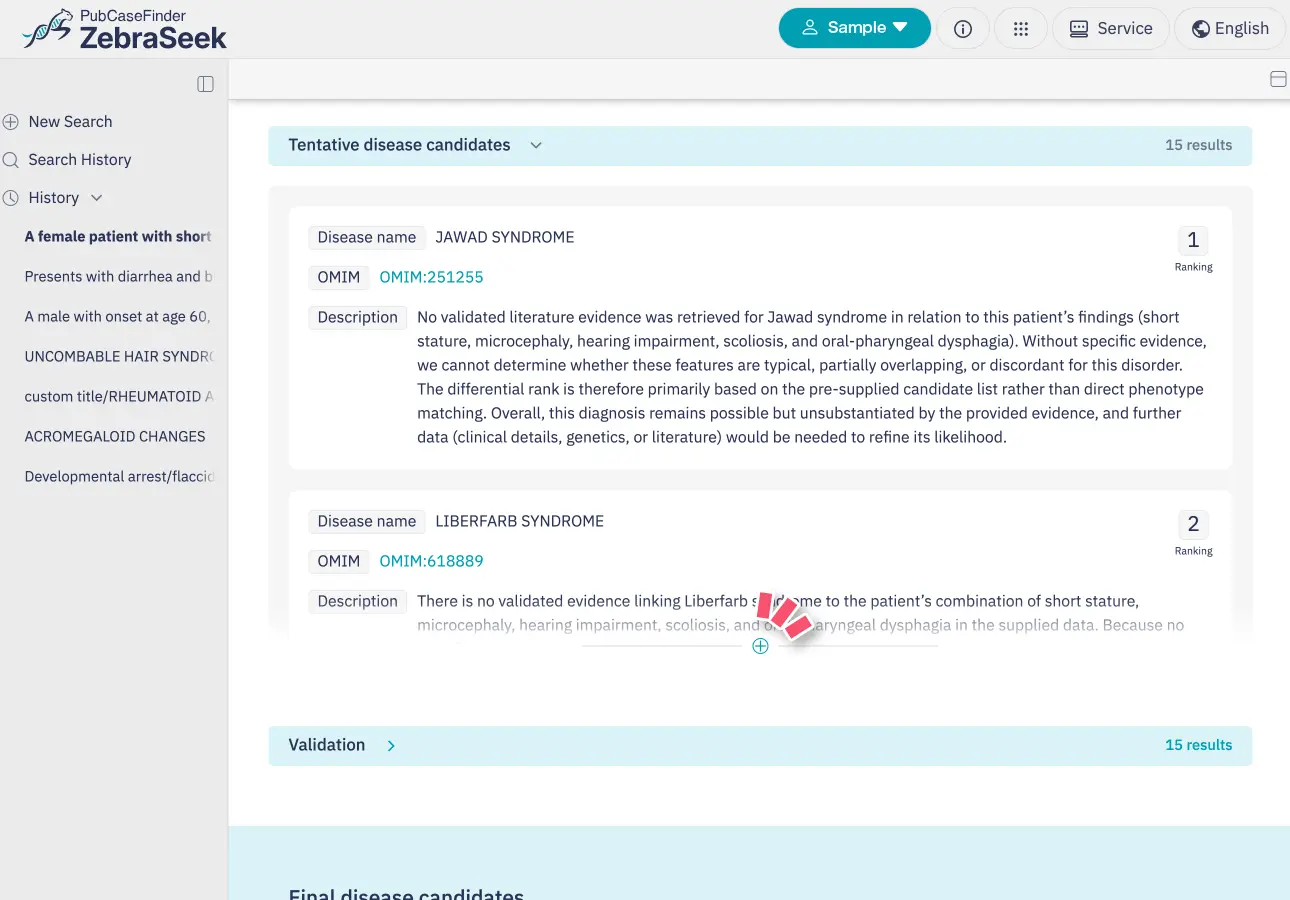
This analysis support system helps explore relevant rare and hereditary disease candidates using patient information such as symptoms and facial images. It combines AI with multiple analysis technologies and presents disease candidates and their supporting evidence in ranked order.
Search across multiple systems
Combining AI with multiple analysis technologies allows you to explore disease candidates from different perspectives.
Explore disease candidates through facial image analysis
Upload a facial image to explore disease candidates through image analysis. Images are used only for analysis and are not stored on the server, allowing you to explore securely with consideration for privacy.
Review disease candidates together with the evidence supporting their selection
Disease candidates are presented with supporting evidence. Written explanations describe how they relate to the patient's symptoms and findings, helping you review the candidates.

Useful ZebraSeek features: Pickup
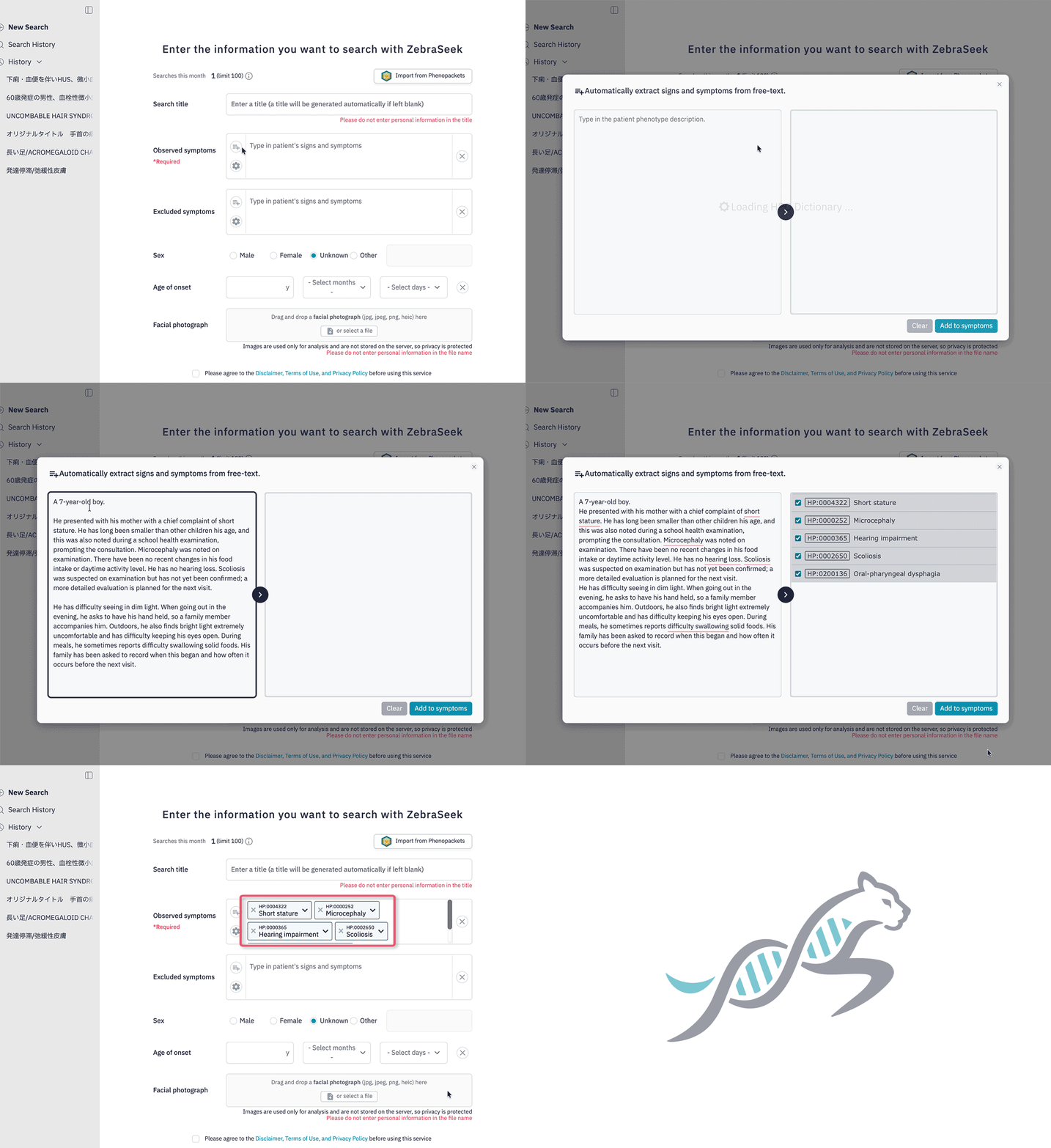
PickupEasily enter symptoms from text
Built-in AI functionality automatically extracts symptoms from text, helping you explore efficiently.
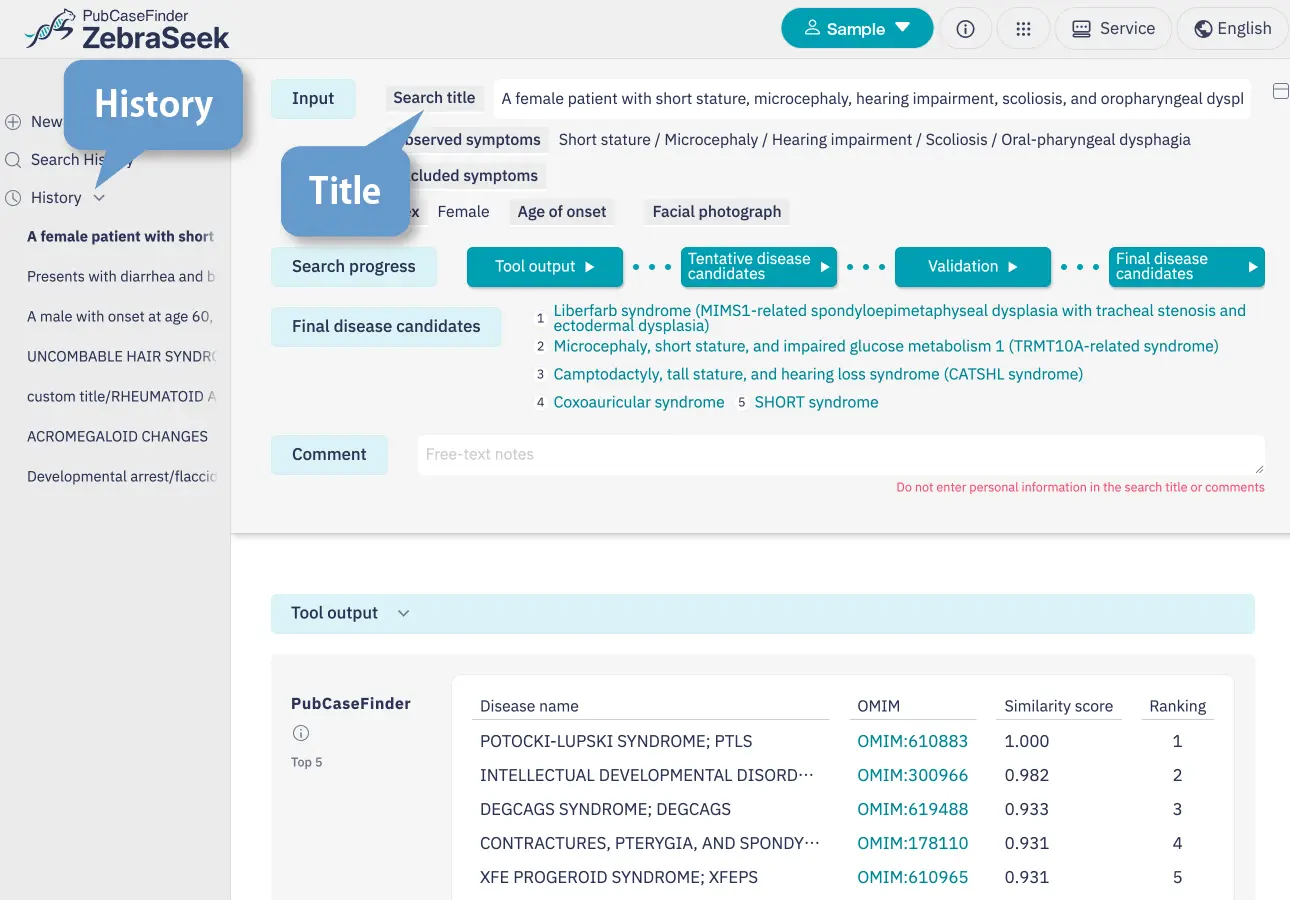
PickupExploration history is saved automatically and can be viewed at any time
Past exploration results are saved in your history. Titles are also automatically generated from the results, making it easy to revisit them later.
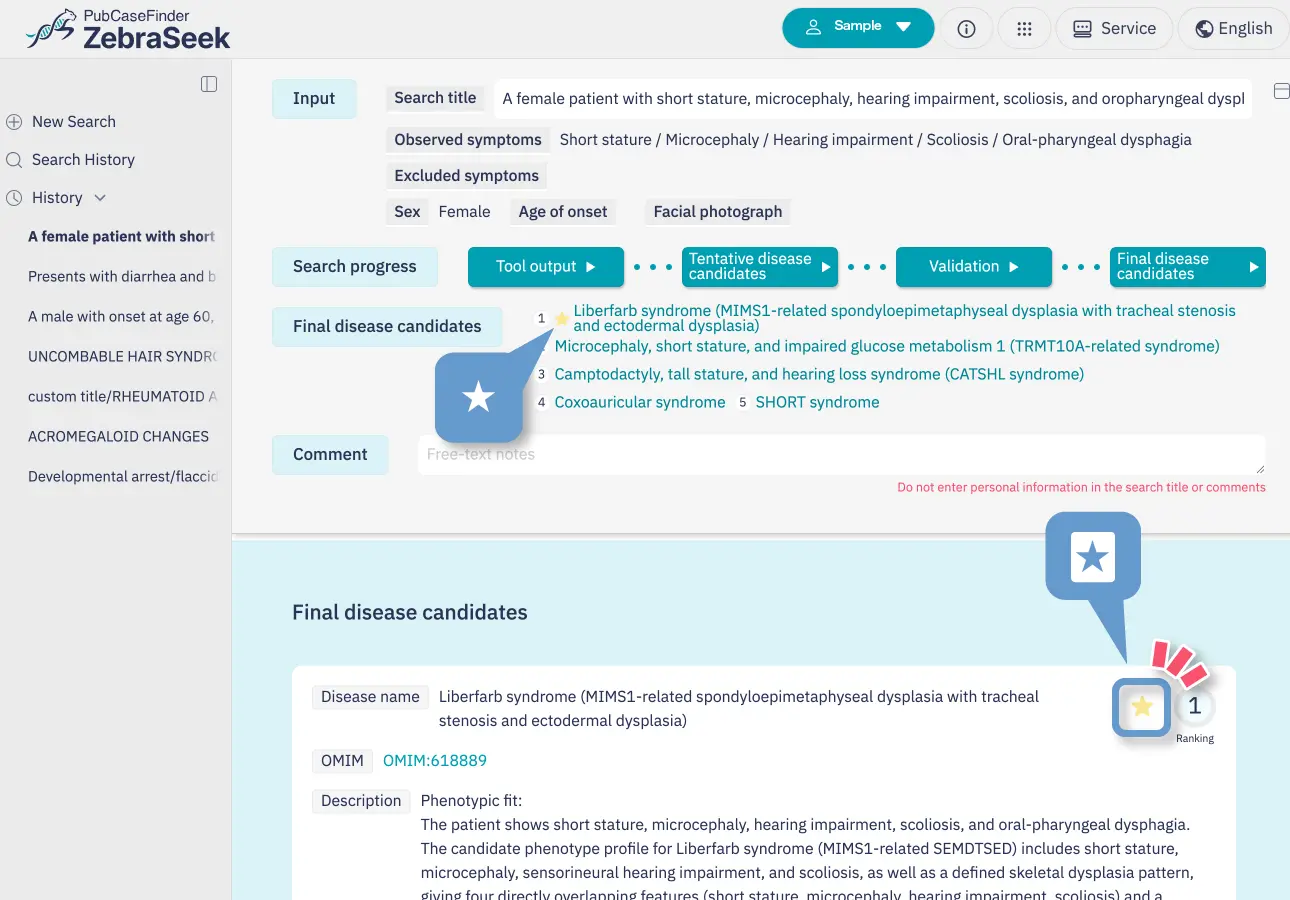
PickupMark disease candidates of interest with a ★ to revisit later
Add a ★ to a final disease candidate of interest to also mark it in the list at the top of the screen. When you reopen the results from exploration history later, you can quickly find the candidates you marked.
User Guide
Log in
You need to create an account to use ZebraSeek. Google authentication is used to log in.
Your account is shared across all of the following services: DiseaseSearch, CaseSharing, and PanelSearch.
Enter patient information
Enter the patient's signs or symptoms
Enter a specific symptom name (for example, "anemia") to display a list of related suggestions. Select and add the symptom you want.
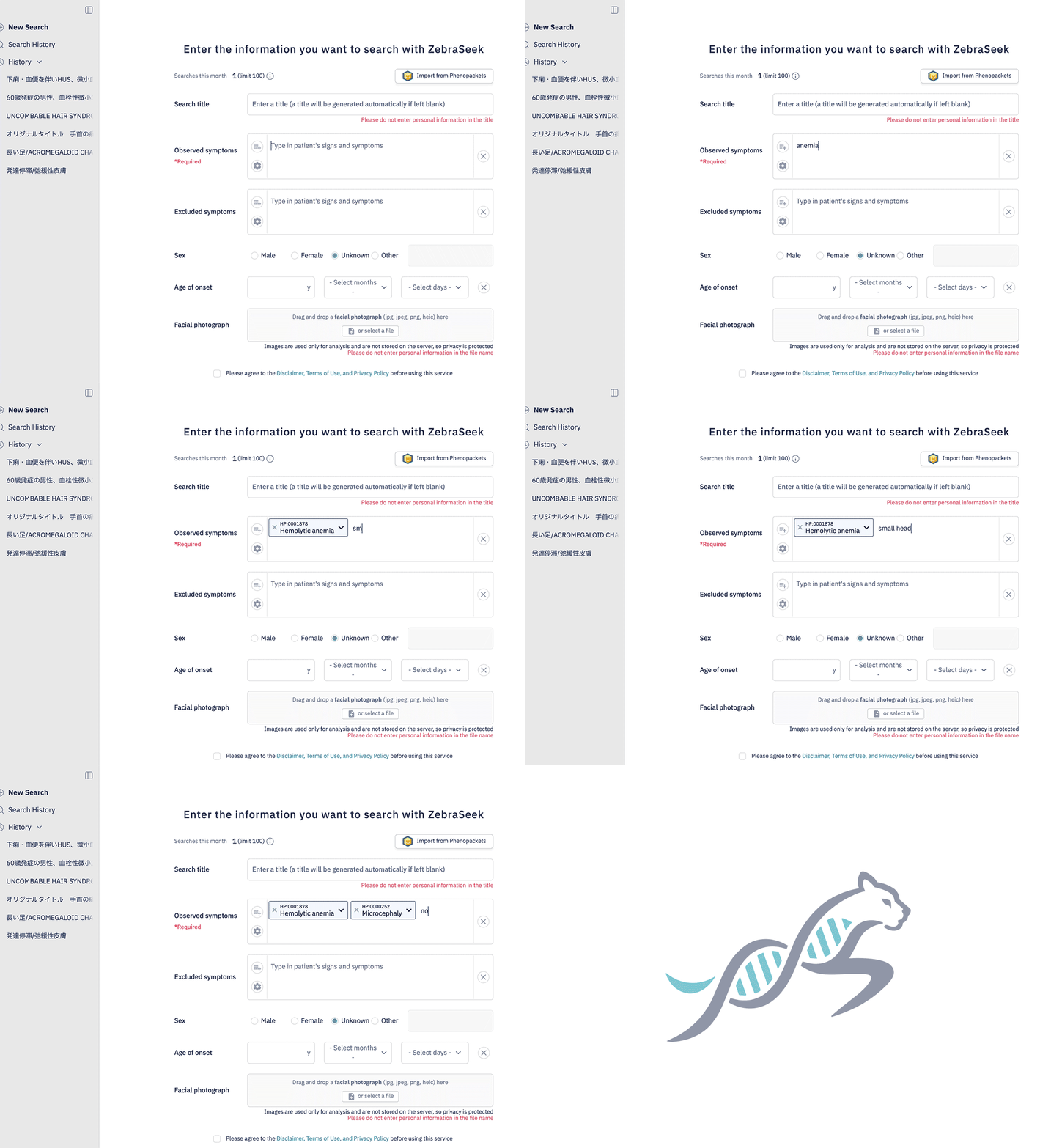
Enter symptoms from text
Simply enter a longer passage, such as a clinical record, to automatically extract candidate symptoms for your search.
Explore parent and child concepts of symptoms
Enter a specific symptom name (for example, "Short finger") and click the symptom name to explore broader parent concepts or more specific child concepts. You can add a new symptom or replace a selected symptom.
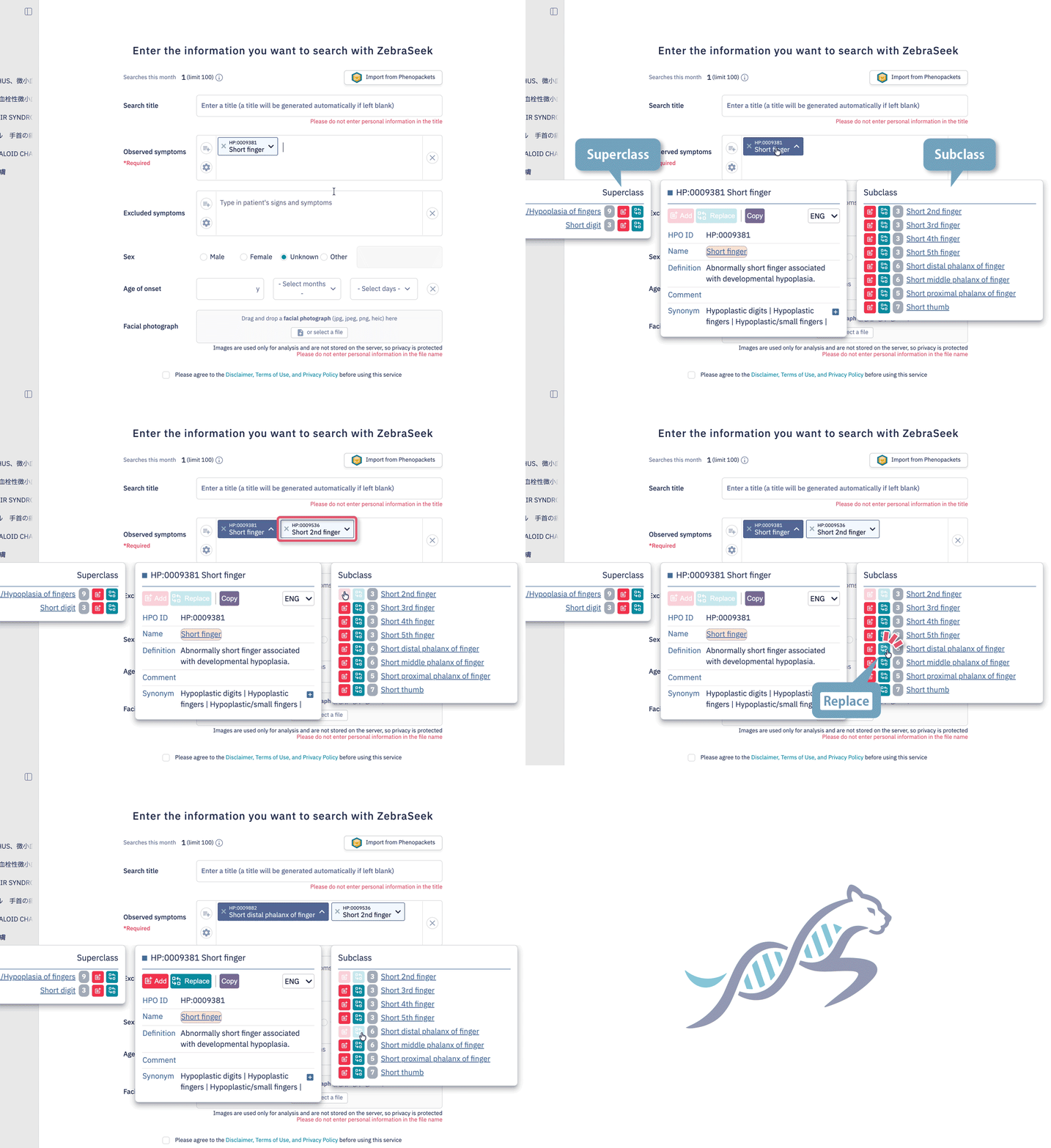
Upload a facial image
Upload a facial image to use the GestaltMatcher image analysis system to explore disease candidates with similar features. Uploaded images are used only for analysis and are not stored on the server, allowing you to explore securely with consideration for privacy.
Upload Phenopackets
Upload Phenopackets to automatically import symptoms and patient information. Spend less time on data entry and more time exploring cases.
Manage exploration results
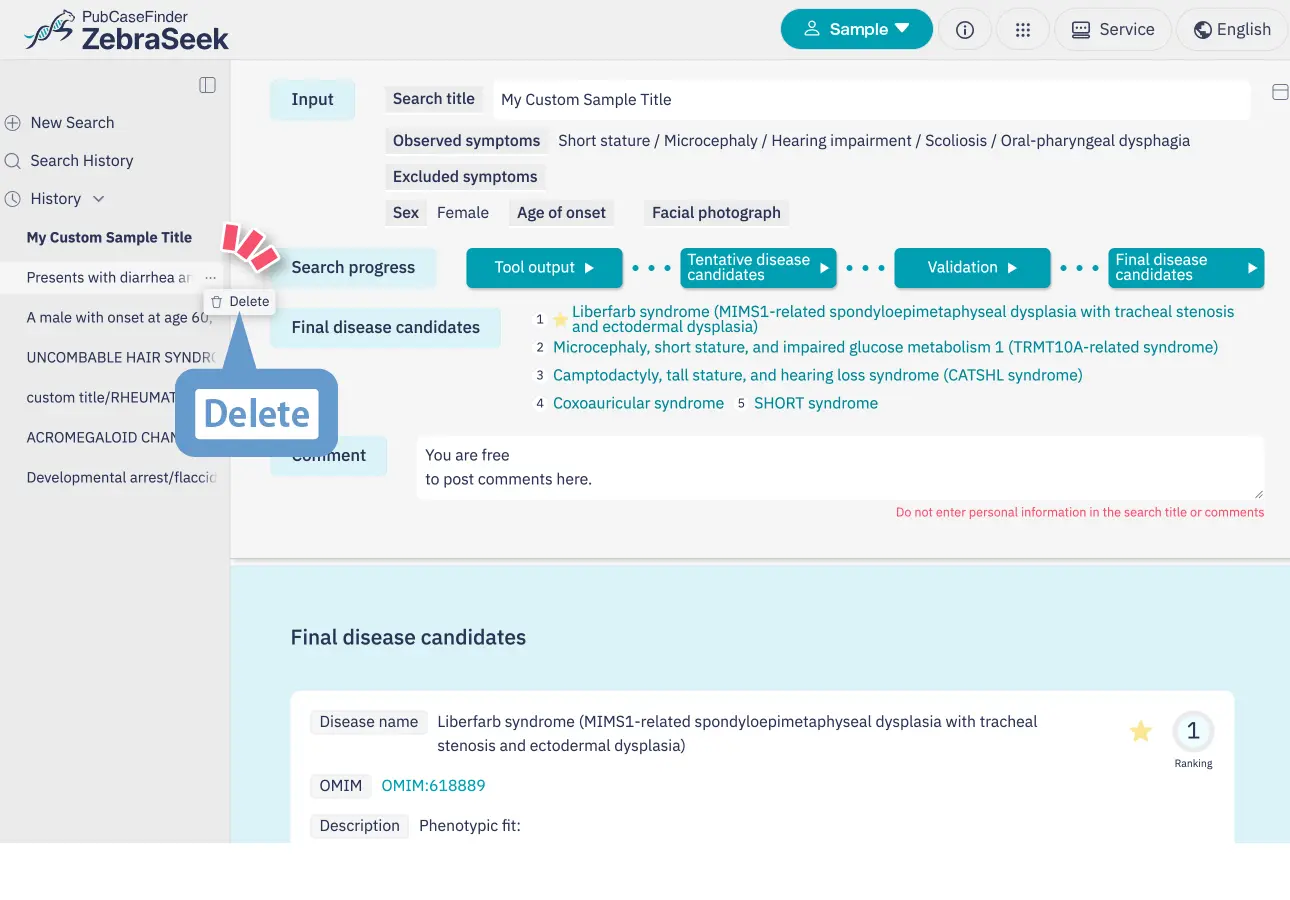
TitleA title is automatically generated from the exploration results. You can change it to a title of your choice as needed.
CommentsYou can freely record comments to manage notes and supplementary information about a case.
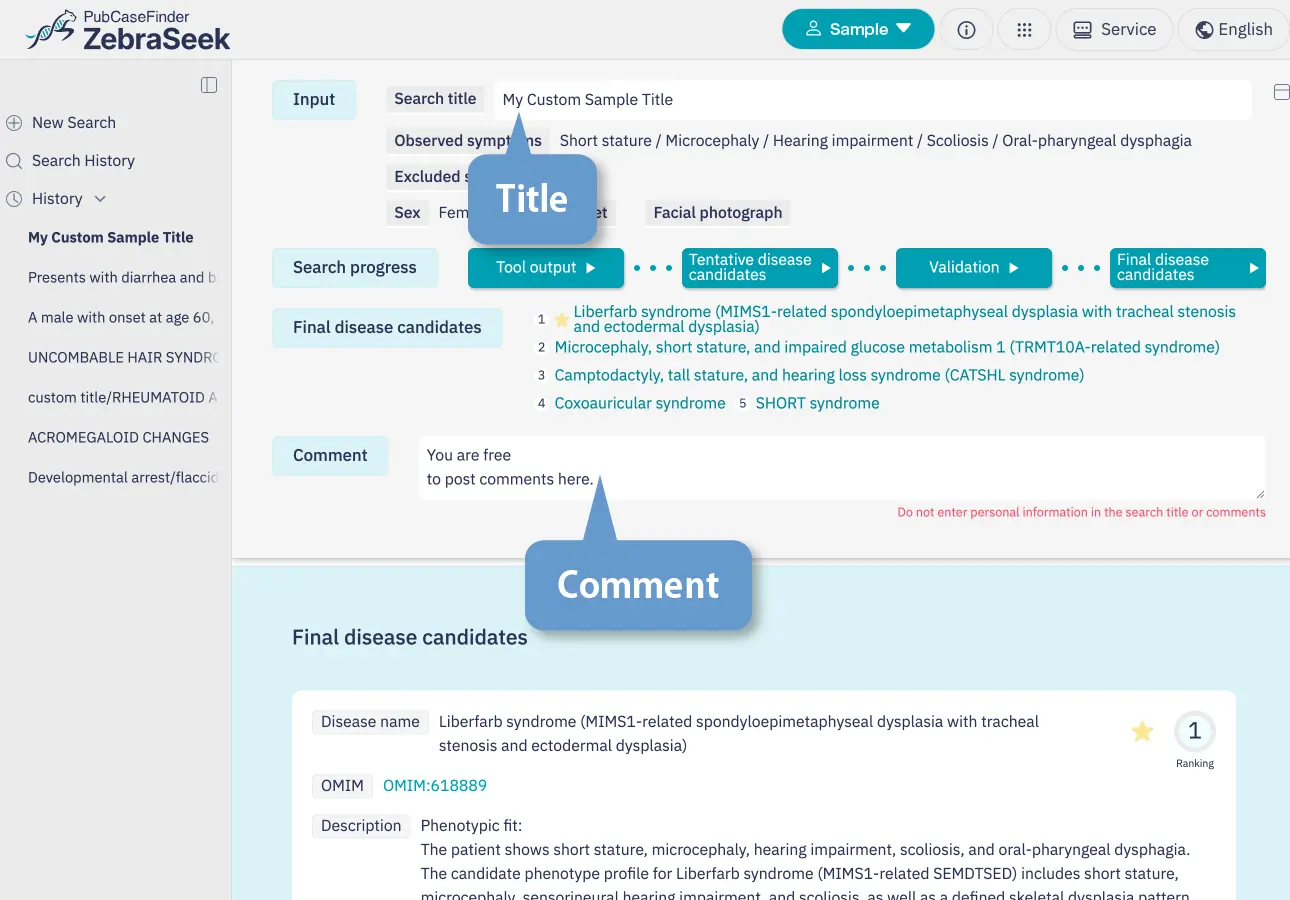
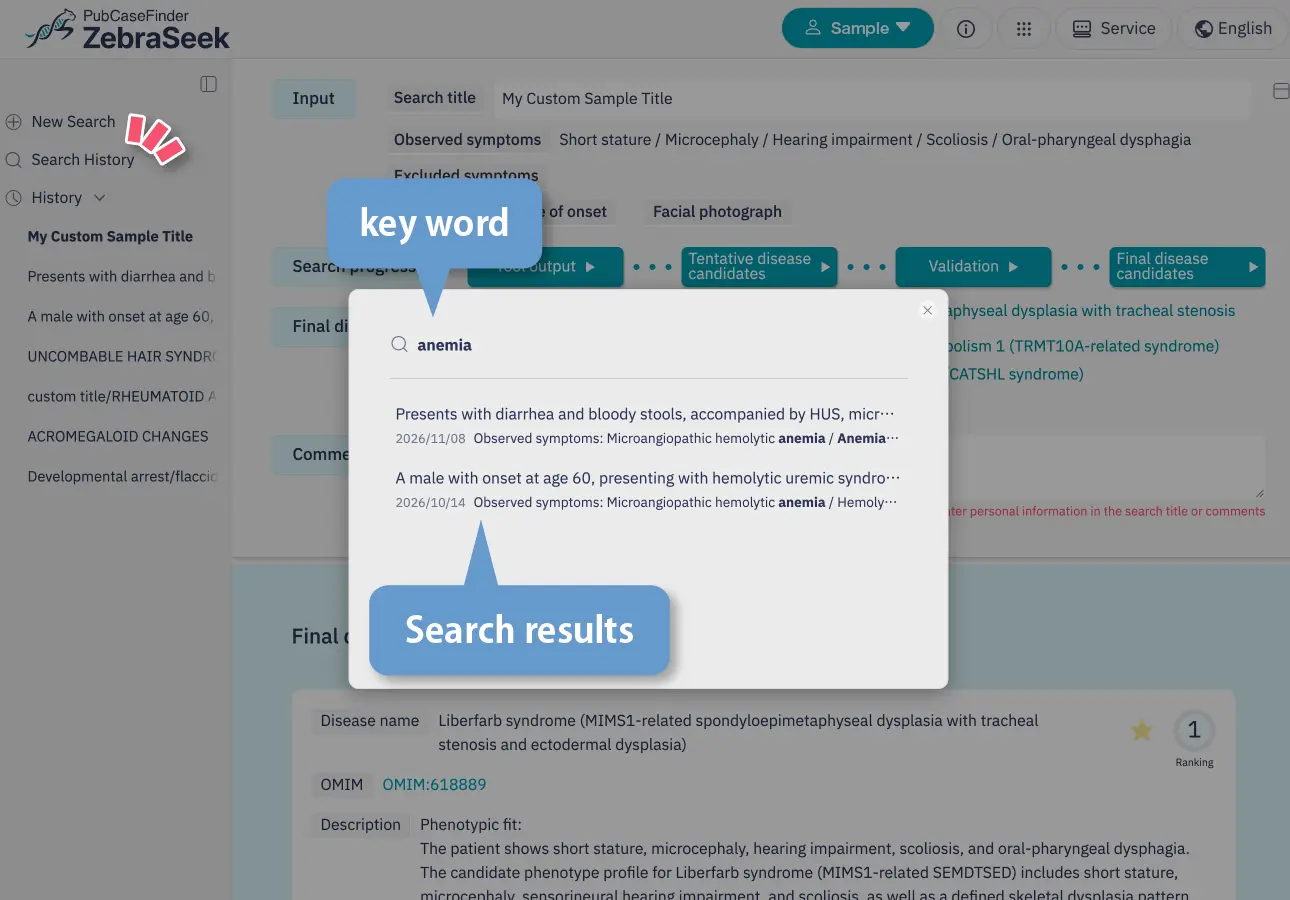
Search history
Use "Search history" in the sidebar to search past exploration results. You can search titles, symptoms, facial image filenames, disease names in exploration results, and comments. Separate multiple keywords with spaces.
Delete history
Use the menu to the right of a history entry's name in the sidebar to delete entries one at a time.
About analysis system outputs
Each analysis system uses its own method to present up to five disease candidates in ranked order based on patient information such as clinical findings and facial images. These results are then used to integrate and verify candidates. OMIM ID links open the corresponding disease's OMIM page directly.
PubCaseFinder
Disease candidates are ranked based on how closely the case's clinical findings match phenotypes reported for known diseases. HPO (Human Phenotype Ontology), a standardized vocabulary for symptoms and findings, is used to evaluate similarity while also considering relationships between terms. The similarity scores used for ranking are also displayed.
Vector search
Searches for disease descriptions that are semantically similar to the case's clinical findings and presents disease candidates. Disease descriptions from the Mondo database are used, with searches based on similarity in meaning rather than word matches alone. The similarity scores used for ranking are also displayed.
Zero-shot
GPT-5.2 directly proposes and ranks disease candidates based on the case's clinical findings. The large language model (LLM) uses its learned knowledge to suggest candidates based on combinations of symptoms and findings.
GestaltMatcher
Analyzes facial features in an image and presents disease candidates based on cases with similar features. Facial features that are difficult to describe in words can also provide clues for exploration.
About provisional disease candidates
A large language model (LLM) integrates the disease candidates presented by each analysis system and ranks them using patient information and the systems' ranks and scores. You can review these candidates before verification using external information.
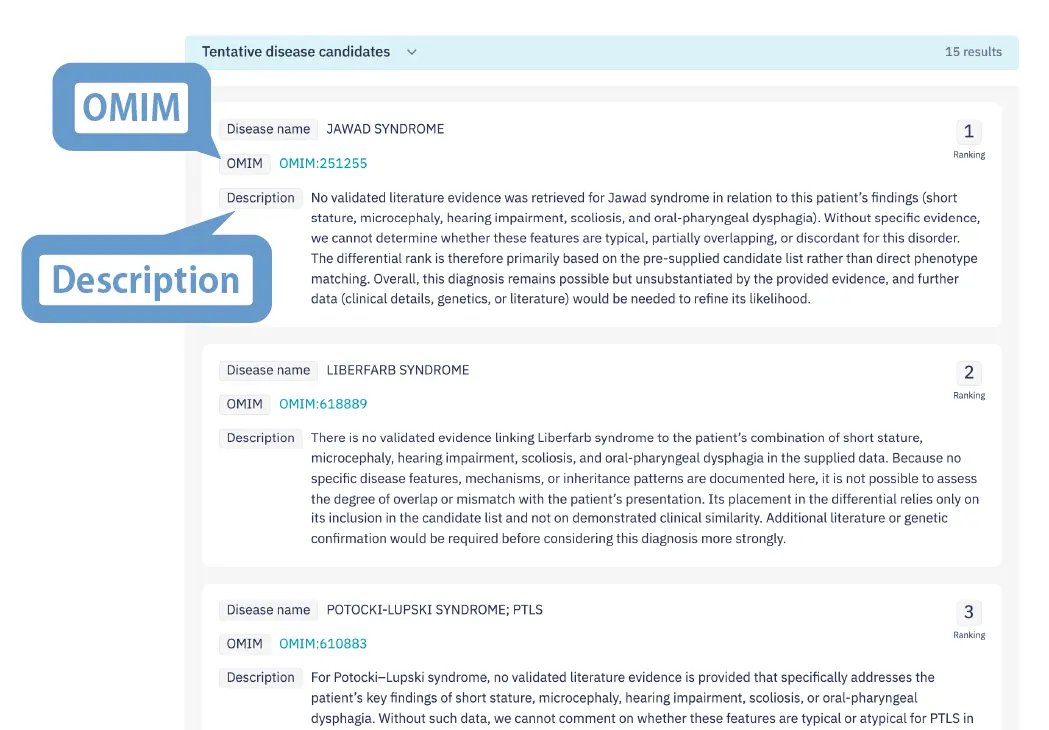
OMIMThe link opens the corresponding disease's OMIM page directly.
DescriptionSummarizes why the LLM proposed the disease as a candidate. You can review the disease's features and how they relate to the patient's symptoms and findings.
ReferenceShows the sources corresponding to the numbers in the description. You can check which systems' results support the candidate.
About verification
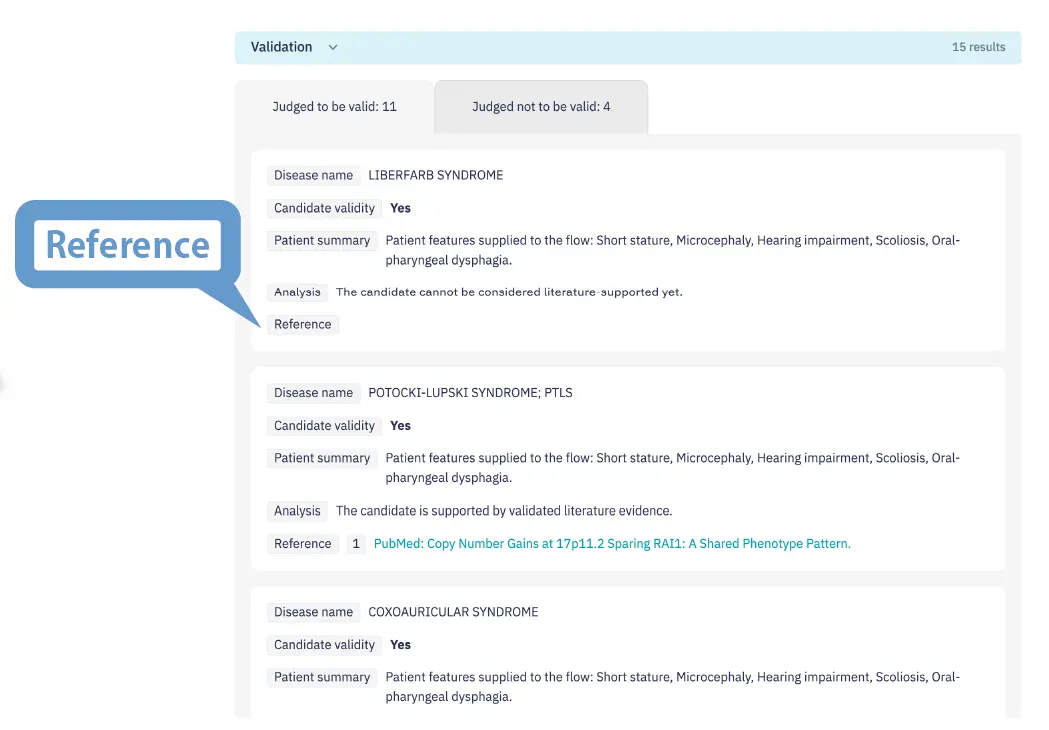
A large language model (LLM) consults external medical information, such as PubMed, to check how provisional disease candidates relate to the patient's symptoms and findings. The verification results are reflected in the selection and ranking of final disease candidates.
Candidate validityShows the LLM's assessment of each disease candidate. In the "Validation" section, switch between the "Judged to be valid" and "Judged not to be valid" tabs to review each group.
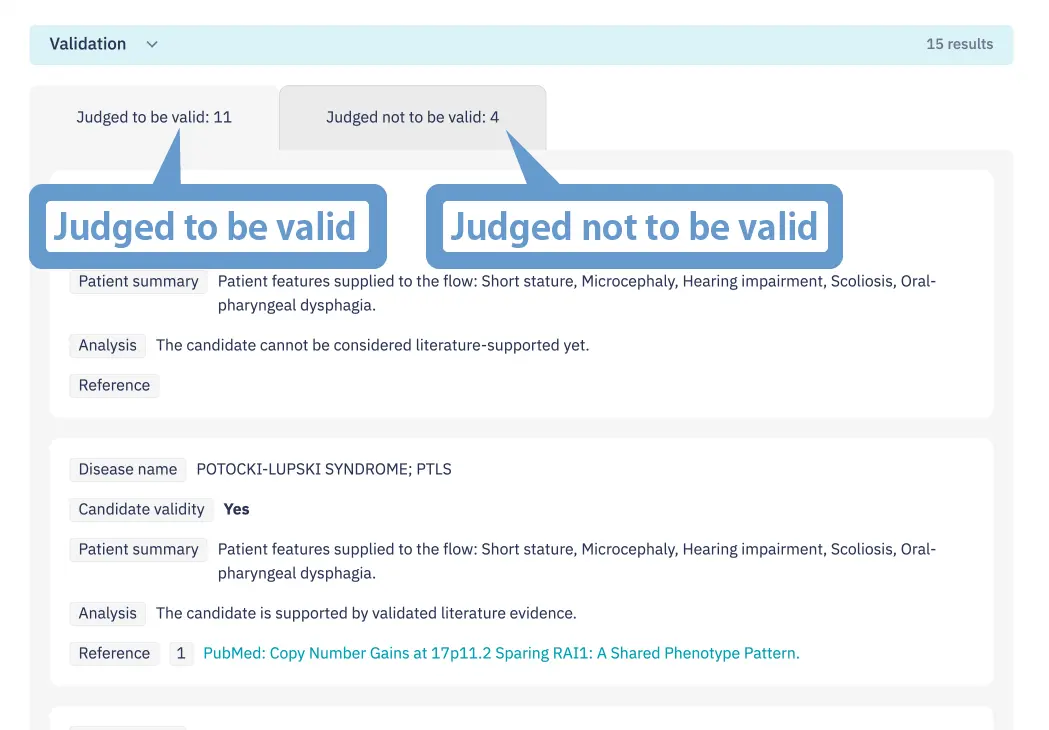
Patient summarySummarizes the patient information used for verification, including symptoms, findings, and age.
AnalysisExplains why the LLM reached its validity assessment by comparing patient information, system results, and external medical information. You can review findings that support the candidate and any missing information needed for the assessment.
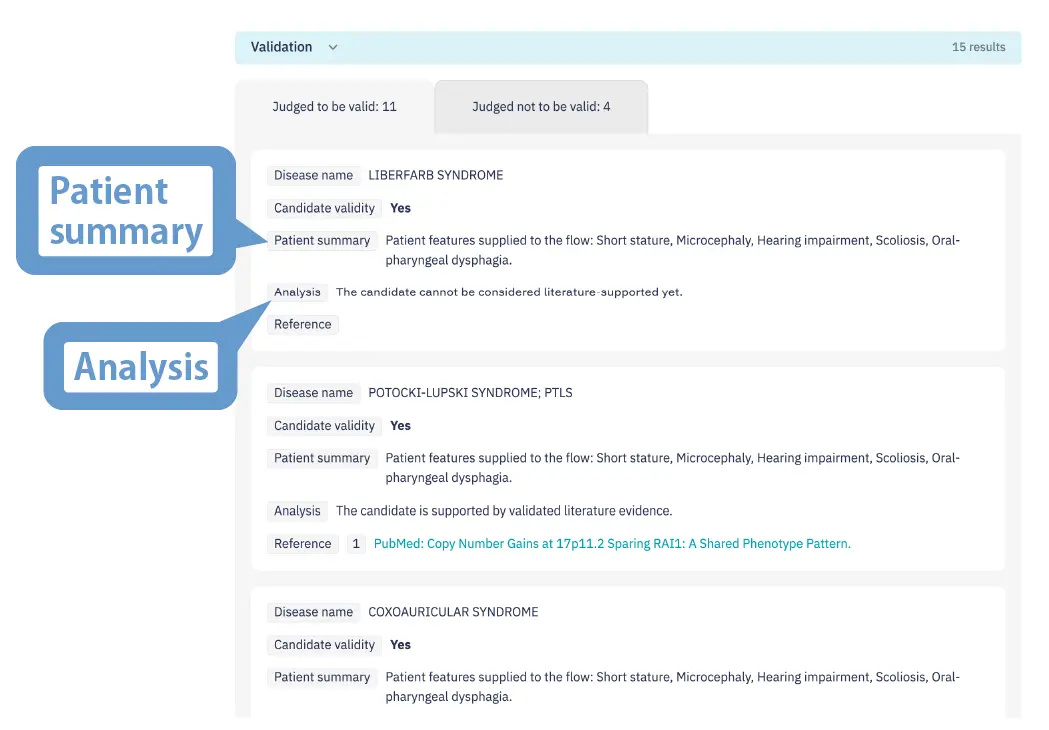
ReferenceShows the sources of medical information consulted during verification. Open "Summary" to review the key points of the referenced information.
About final disease candidates
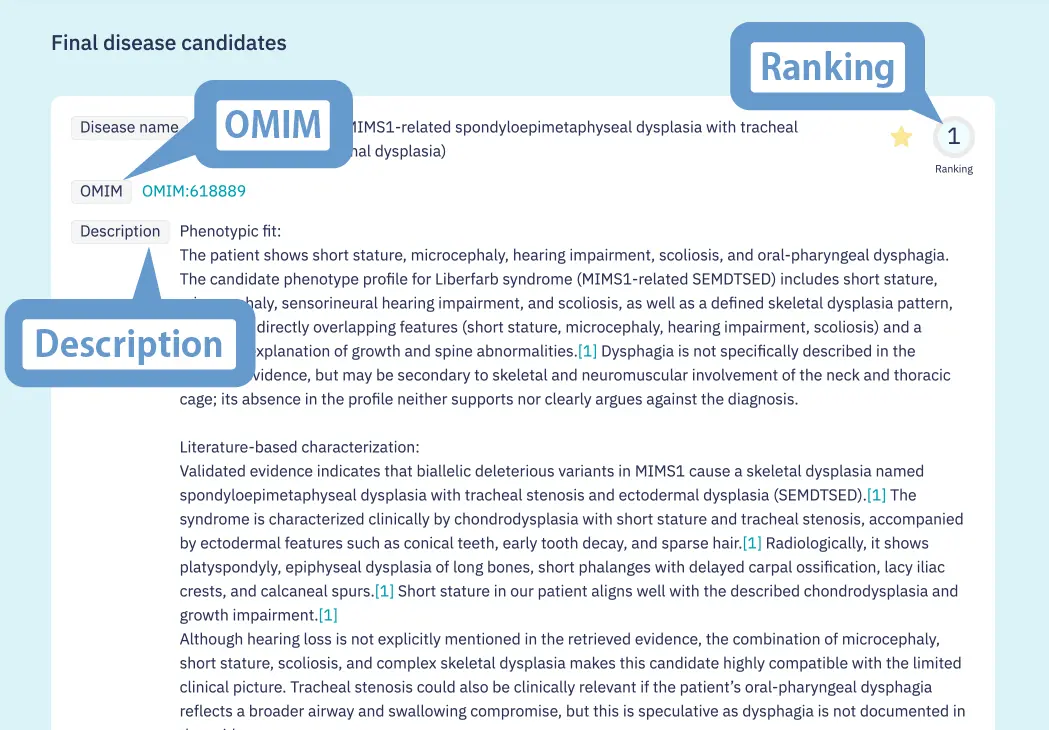
Based on analysis system exploration results and verification using external medical information, a large language model (LLM) presents five final disease candidates in ranked order. You can review why each candidate was selected and the information supporting it.
RankingShows the final ranking determined by the LLM after candidate integration and verification.
OMIMOpens the corresponding disease's OMIM page directly.
DescriptionSummarizes why the LLM selected the disease as a final candidate, based on patient information, system results, and verification results. You can review how it relates to the patient's symptoms and findings and the evidence supporting the candidate.
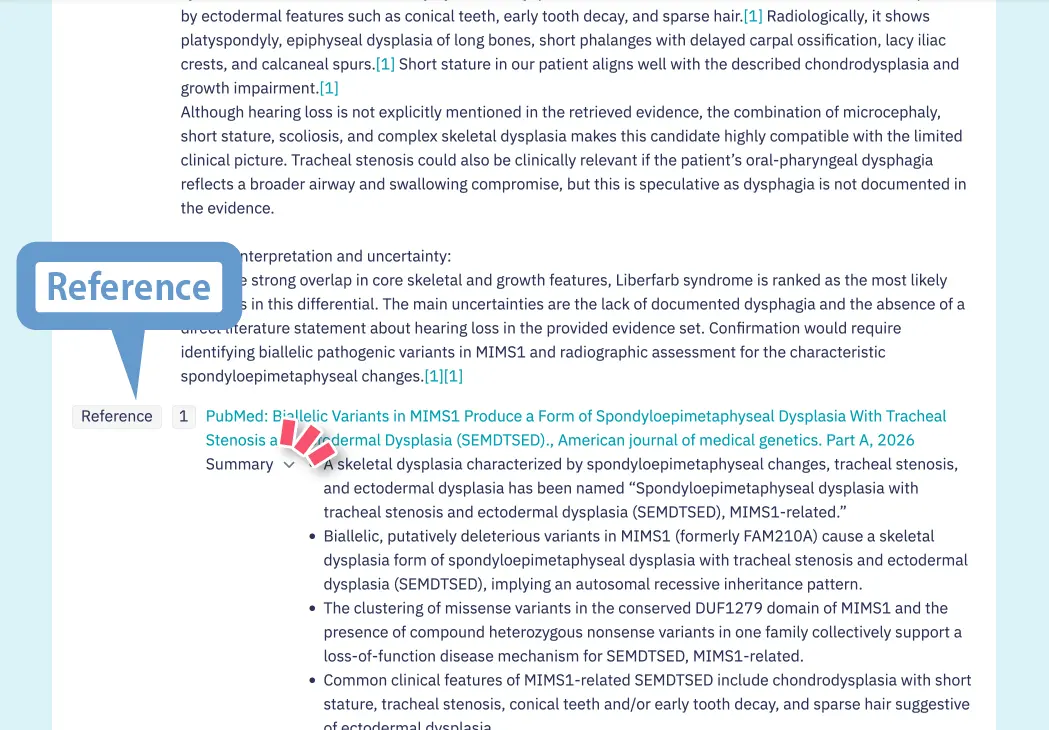
ReferenceShows sources supporting the final disease candidates, including medical literature and system results. Open "Reference" to review multiple reference items and detailed explanations, such as key points from the literature and candidates and ranks presented by the systems. For items with links, you can open the source page directly to review the original information.
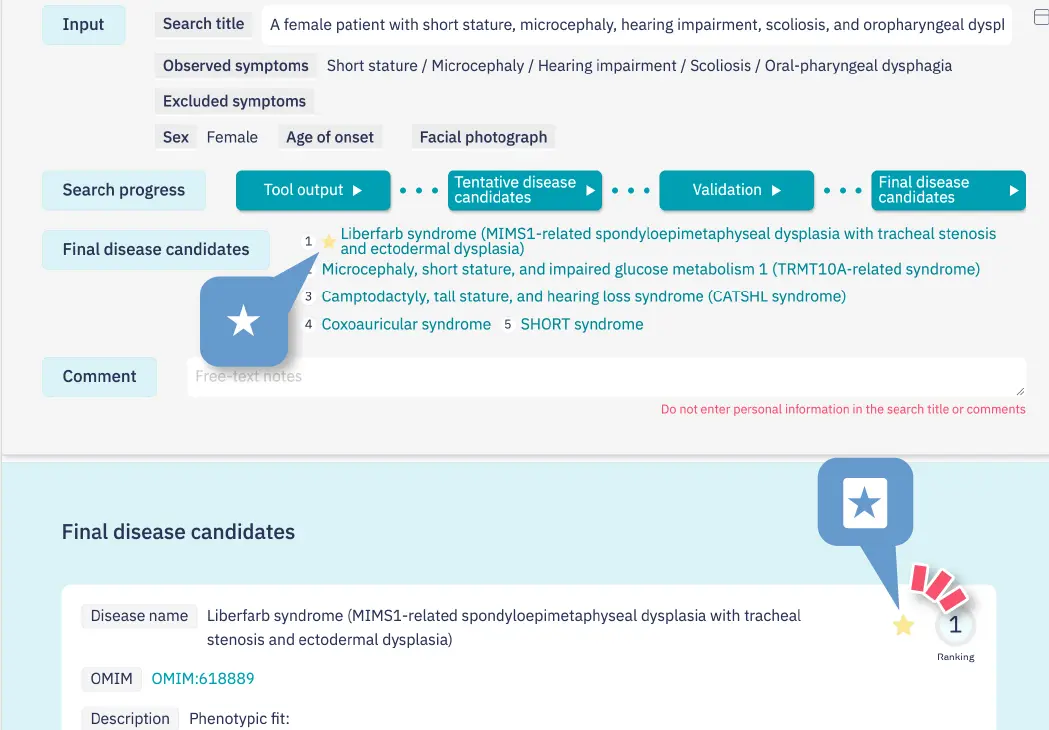
Marking featureClick the ★ at the top right of a candidate to also mark it in the "Final disease candidates" list at the top of the screen. This makes candidates of interest easy to find when you reopen the exploration results from history later.
Adjust the display
Open or close panels and adjust the results display area to suit the information you want to review. Even lengthy exploration results can be displayed with the relevant sections easy to read.
Open or close the sidebar and overview panel
You can independently open or close the sidebar and the overview panel at the top of the screen, which summarizes entered information and final disease candidates.
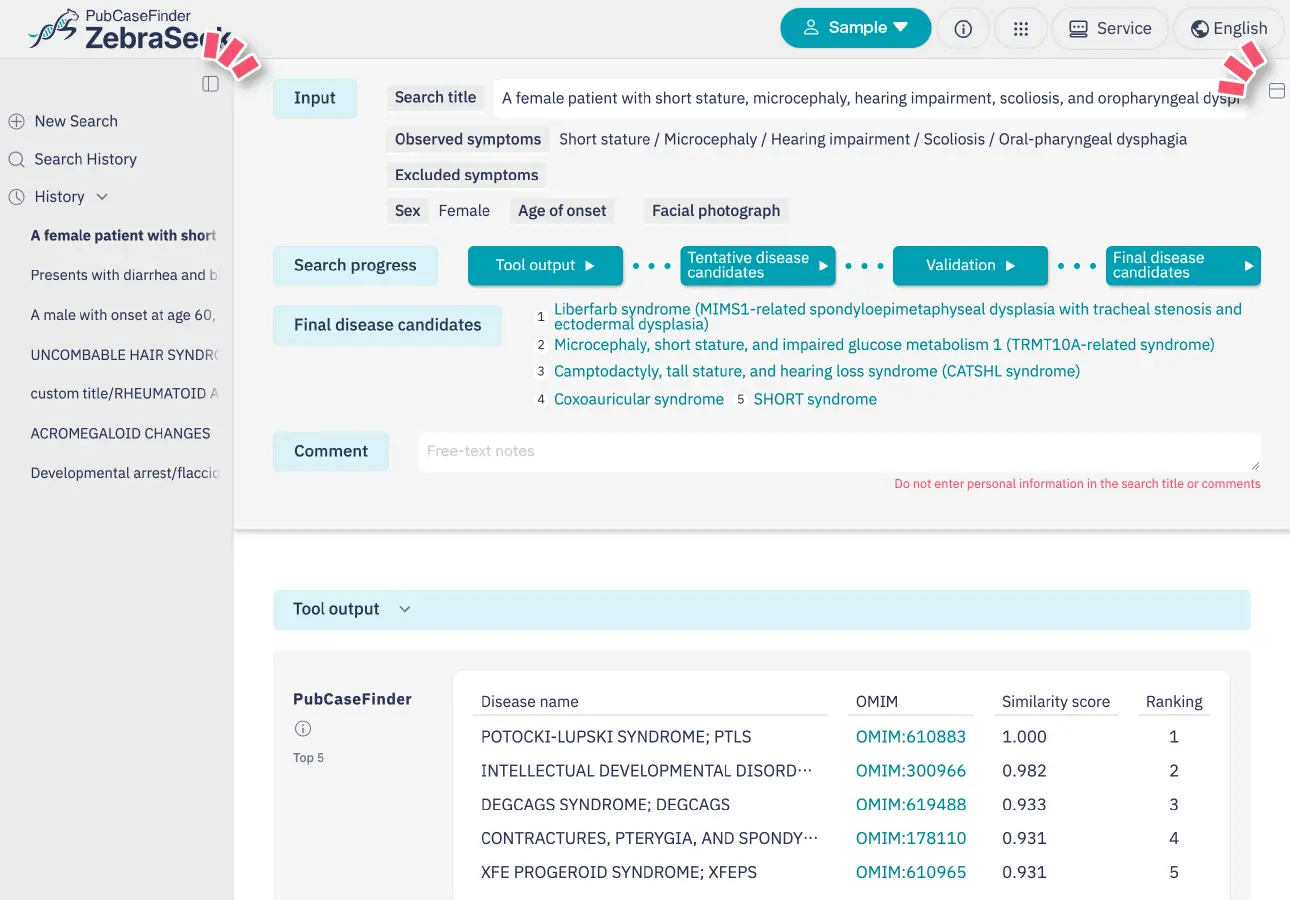
Open or close individual sections
Open the sections you want to review and close the others to make the information you need easier to find.
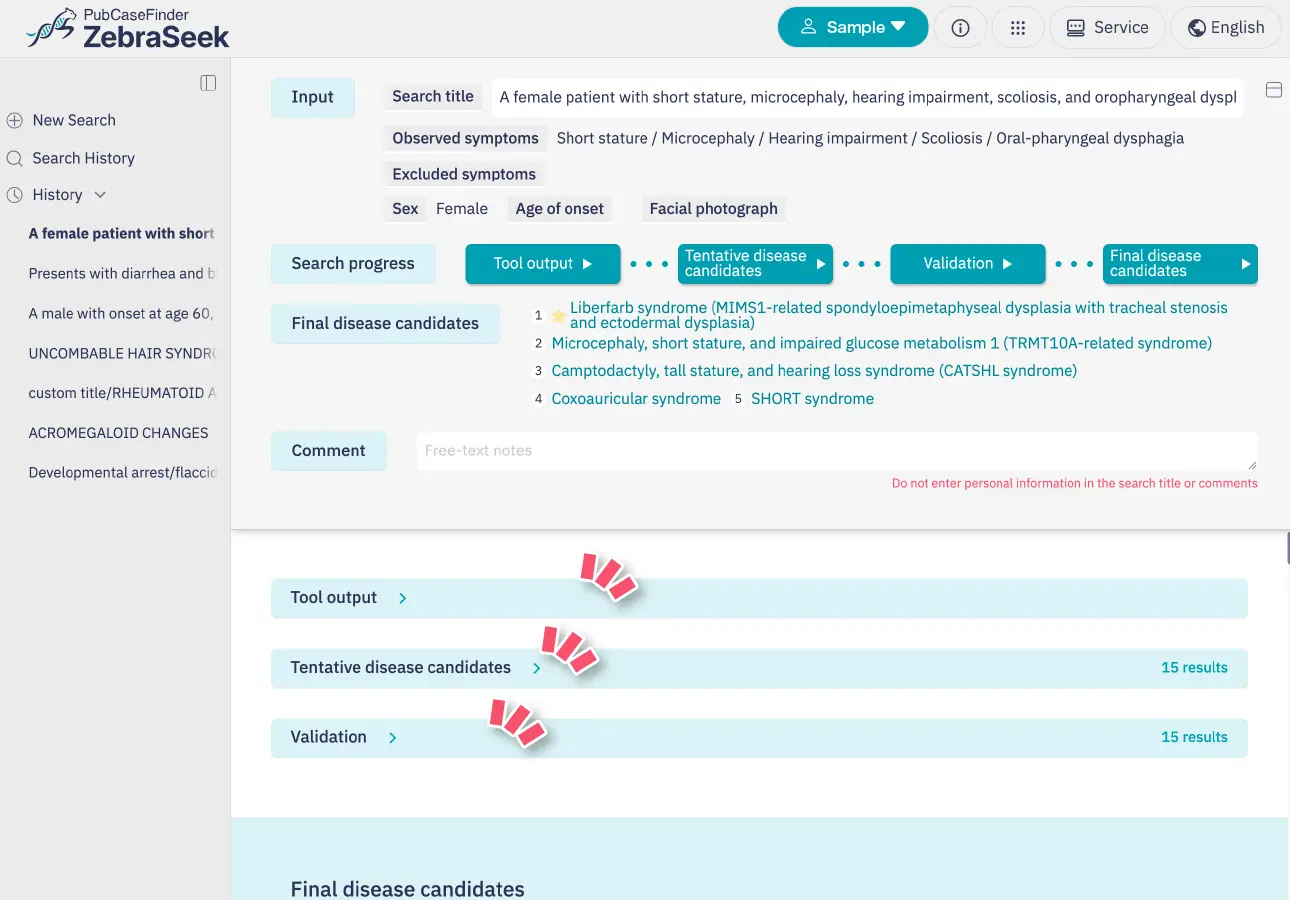
Adjust the results display area
Use the "+" and "−" buttons at the bottom of the results to expand or shrink the display area. Expand it to review long explanations or multiple candidates in sequence, or shrink it for a compact display.